Your mouse has vanished. Or the trackpad has frozen. Or your cat is sitting on it like a fluffy tech support agent. Good news. You can still restart your Mac without touching a mouse. Macs are full of keyboard tricks, and many of them are easy once you know the magic keys.
TLDR: To restart a Mac without a mouse, try pressing Control + Command + Power or Control + Command + Touch ID. On some Macs, you can press Control + Eject, then press Return to choose Restart. You can also use the keyboard to open the Apple menu, or use Terminal if you like feeling powerful.
Why Restart a Mac Without a Mouse?
Sometimes your Mac acts weird. Apps freeze. The pointer will not move. A Bluetooth mouse runs out of battery at the worst possible time. A trackpad may stop responding. Or maybe you simply want to learn a cool keyboard trick.
A restart can fix many small problems. It clears memory. It closes stuck apps. It gives your Mac a fresh start. Think of it as sending your Mac to take a tiny nap.
Before you restart, do one thing if you can. Save your work. Press Command + S in open apps. This saves many documents. It does not work everywhere, but it is still a good habit.
Now let us restart that Mac like a keyboard wizard.
Method 1: Use the Fast Restart Shortcut
This is the quickest method. It is also the most famous one.
Press these keys at the same time:
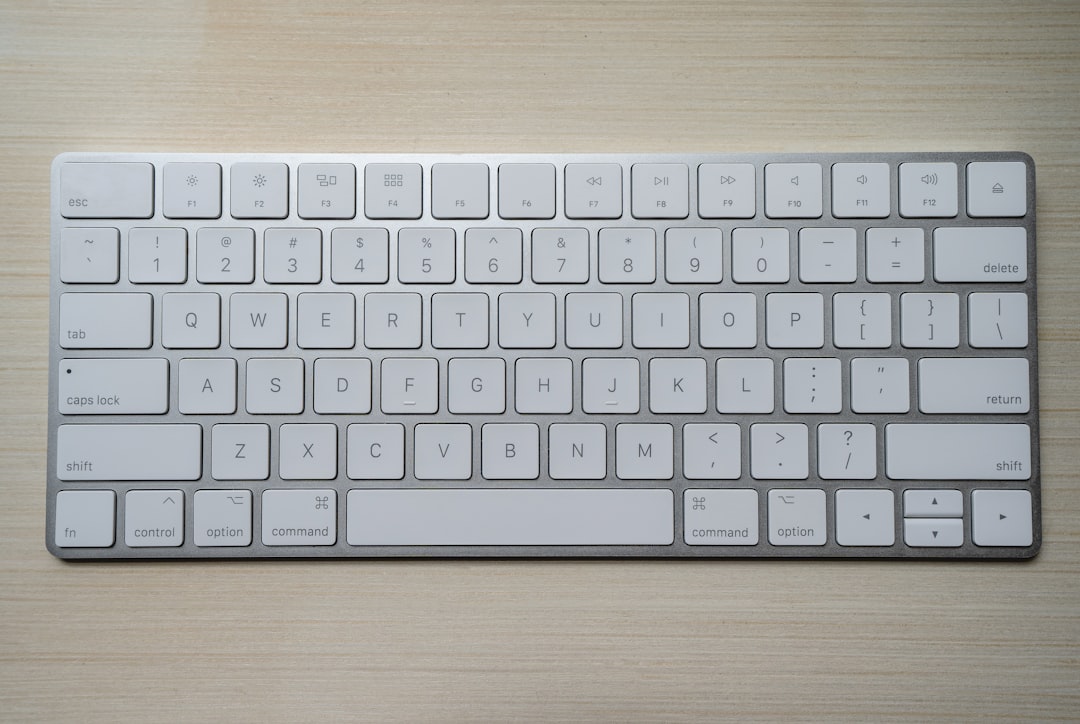
- Control + Command + Power button
On newer MacBooks with Touch ID, press:
- Control + Command + Touch ID
Your Mac should restart right away. No mouse. No menu. No drama.
But be careful. This shortcut may restart without asking much. If you have unsaved work, you could lose it. So use it when your Mac is stuck, or when you already saved your files.
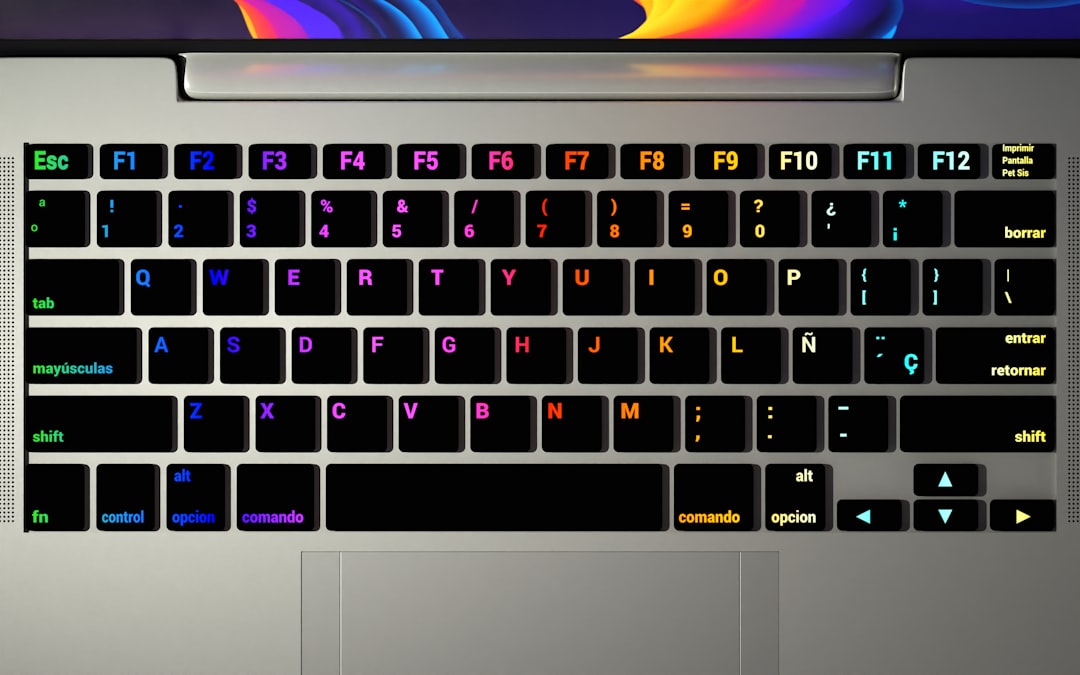
Where is the Power button? On many MacBooks, it is the Touch ID button in the top right corner. On older Macs, it may be a physical power key. On some desktop keyboards, it may be near the top row.
Method 2: Use the Restart Dialog
This method is gentler. It opens a small box with options like Restart, Sleep, Cancel, and Shut Down. You can choose with the keyboard.
Press:
- Control + Eject
Then press:
- Return
On many Macs, Return confirms the Restart button. Easy.
If your keyboard does not have an Eject key, try this instead:
- Control + Power button
Or on some newer Macs:
- Control + Touch ID
This should open the same type of power menu. Then use Tab to move through the buttons. Press Space or Return to choose one.
If this feels like a tiny video game menu, that is because it kind of is. The prize is a restarted Mac.
Method 3: Open the Apple Menu with the Keyboard
You do not need a mouse to use the Apple menu. You can reach it with the keyboard.
Try this shortcut:
- Control + F2
On some Mac keyboards, you may need:
- Fn + Control + F2
This should move focus to the menu bar. The Apple menu is at the far left. Once the menu bar is active, use the arrow keys.
- Press Control + F2 or Fn + Control + F2.
- Use the Left Arrow or Right Arrow to reach the Apple menu.
- Press Down Arrow to open it.
- Use Down Arrow to find Restart.
- Press Return.
- If a confirmation box appears, press Return again.
This method is nice because it acts like your mouse. You are just moving through menus by key instead of pointer.
If Control + F2 does not work, check your keyboard settings later. The function keys may be set to control brightness or volume first. That is why Fn may be needed.
Method 4: Restart from Spotlight and Terminal
This method sounds fancy. It is not too hard. You will use Spotlight to open Terminal. Then you will type one command.
Use this when your mouse is dead but your keyboard still works.
- Press Command + Space.
- Type Terminal.
- Press Return.
- Type sudo shutdown -r now.
- Press Return.
- Type your Mac password.
- Press Return again.
Your Mac will restart.
Let us translate that command. sudo means “do this with admin power.” shutdown is the power command. -r means restart. now means now. Not tomorrow. Not after lunch. Now.
When you type your password in Terminal, you may not see dots or stars. That is normal. Terminal is being sneaky. Just type the password and press Return.
Use this method with care. Terminal is powerful. It is like giving your Mac a tiny wizard wand.
Method 5: Restart When an App Is Frozen
Maybe your mouse is fine, but one app has frozen everything. The spinning beach ball appears. It spins. It spins more. It looks cute, but it is not helping.
Try to force quit the frozen app first.
Press:
- Command + Option + Escape
This opens the Force Quit window. Use the Up Arrow and Down Arrow keys to pick the frozen app. Press Return. Then confirm with Return again if needed.
If the app closes, you may not need to restart. Great. You win.
If the whole Mac is still stuck, use the fast restart shortcut:
- Control + Command + Power
Or:
- Control + Command + Touch ID
Method 6: Use the Login Screen
If you are at the login screen, you can restart without a mouse too. This can happen after waking your Mac, switching users, or logging out.
Try pressing Tab. This moves between items on the screen. Look for the restart button or power button. Use Space or Return to select it.
You can also try the keyboard shortcuts again:
- Control + Command + Power
- Control + Command + Touch ID
- Control + Power to open power options
The exact behavior can change by Mac model and macOS version. But one of these usually works.
What If the Keyboard Also Stops Working?
Uh oh. Now your Mac is being extra spicy.
If both the mouse and keyboard do not respond, wait a few seconds first. Sometimes the Mac is busy. It may be thinking very hard about one tiny thing. Give it a moment.
If nothing changes, you may need a forced shutdown.
Press and hold the Power button or Touch ID button until the screen turns off. This often takes about 10 seconds.
Then wait a few more seconds. Press the power button again to turn the Mac back on.
This is not the best everyday method. It is like pulling the plug. But if your Mac is fully frozen, it may be the only choice.
After it restarts, open the apps you were using. Check your files. Many apps can recover unsaved work, but not all of them can.
Quick Keyboard Cheat Sheet
Here is the simple cheat sheet. Save it in your brain. Or write it on a sticky note. Sticky notes are still undefeated.
- Command + S: Save your work.
- Control + Command + Power: Restart many Macs right away.
- Control + Command + Touch ID: Restart newer MacBooks.
- Control + Eject: Open the restart and shutdown dialog on older keyboards.
- Control + Power: Open power options on some Macs.
- Command + Option + Escape: Force quit a frozen app.
- Command + Space: Open Spotlight.
- Control + F2: Move focus to the menu bar.
- Fn + Control + F2: Same thing on some keyboards.
Tips Before You Restart
A restart is simple. But a smart restart is better. Try these tips first if the Mac is not totally frozen.
- Save open files. Press Command + S in each app.
- Close important apps. Use Command + Q to quit an app.
- Force quit only bad apps. Do not restart if one app is the only problem.
- Check battery devices later. If your mouse died, charge it after the restart.
- Keep a wired keyboard nearby. It can save the day.
If your Mac keeps freezing again and again, do not ignore it. Check for macOS updates. Remove apps you do not trust. Restart in Safe Mode if needed. Also check free storage space. A Mac with almost no space can act grumpy.
Why These Shortcuts May Differ
Macs have changed over time. Some have Eject keys. Some do not. Some have Touch ID. Some have old power buttons. Some keyboards use function keys in special ways.
That is why one shortcut may work on one Mac but not another. Do not panic. Try the next method. There is usually more than one way to restart.
Also, external keyboards can be different. A Windows keyboard may not have the same key names. The Command key may map to the Windows key. The Option key may map to Alt. It feels odd at first, but it works.
Best Method for Most People
If you want the easiest answer, use this:
- Press Control + Command + Power.
If you have a MacBook with Touch ID, use this:
- Press Control + Command + Touch ID.
If you want a safer method with a confirmation box, try:
- Control + Power, then choose Restart with the keyboard.
If you like doing things the cool nerd way, use Terminal:
- sudo shutdown -r now
All are valid. Pick the one that fits the moment.
Final Thoughts
Restarting a Mac without a mouse is not scary. It is just a keyboard adventure. You have shortcuts, menus, dialogs, Spotlight, and Terminal. That is a whole toolbox.
Start with the simple shortcuts. Use the Apple menu if you want more control. Use Terminal if you feel brave. Use a forced shutdown only when your Mac is truly frozen.
Your mouse may quit. Your trackpad may sulk. Your cat may still be in the way. But now you know what to do. Press the right keys, stay calm, and give your Mac the fresh start it deserves.




Leave a Reply