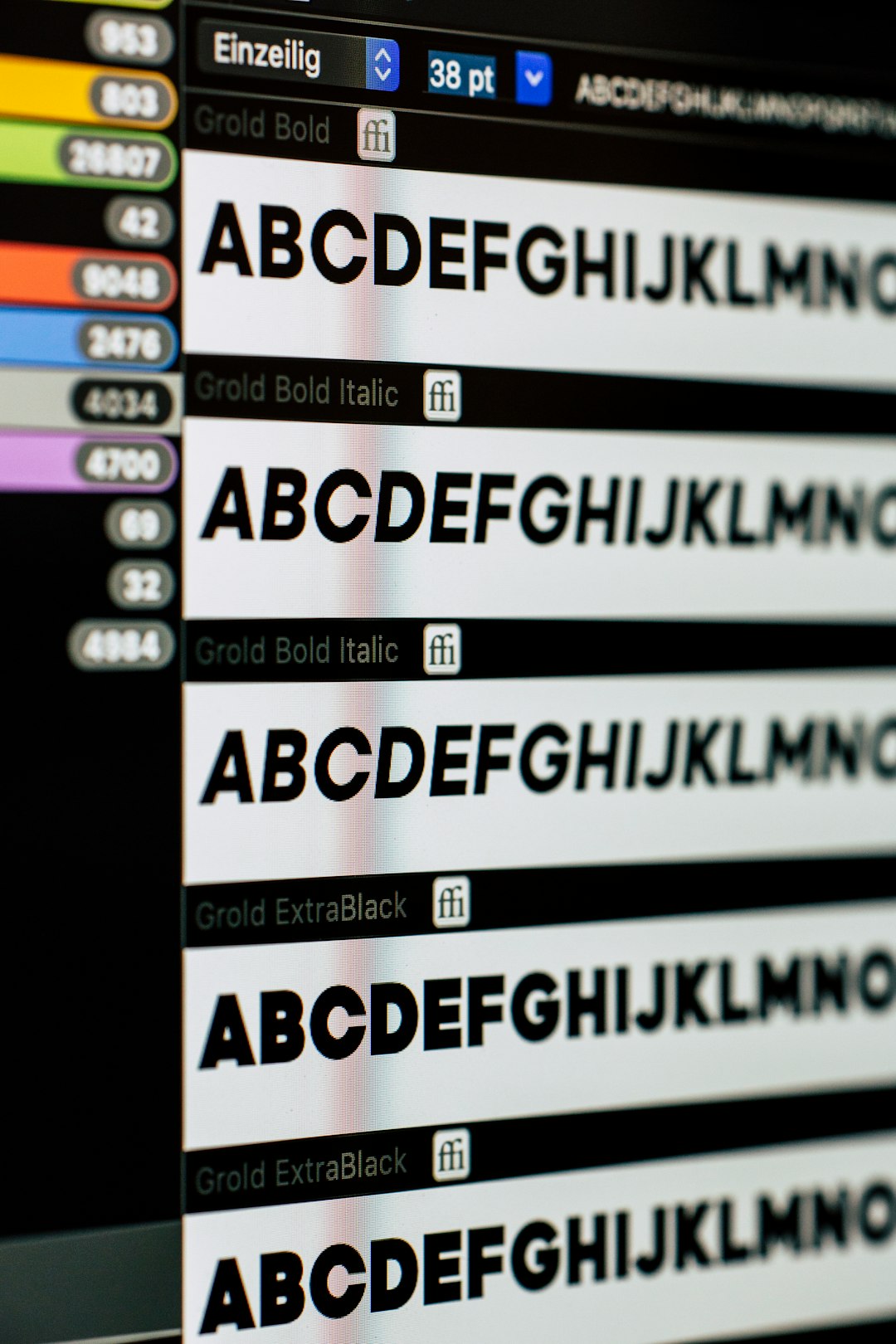
Fonts are a critical part of a PowerPoint presentation’s design, readability, and brand consistency. If a presentation uses fonts that are not installed on another computer, PowerPoint may replace them with default fonts, which can break layouts, change spacing, and make slides look unprofessional. Embedding fonts helps preserve the appearance of your deck when it is shared, emailed, or presented on another device.
TLDR: To embed fonts in PowerPoint, go to File > Options > Save, then enable Embed fonts in the file. Choose whether to embed only the characters used or the entire font, depending on whether others need to edit the presentation. If embedding fails, the font may be restricted, unsupported, missing, or incompatible with your PowerPoint version.
Why Font Embedding Matters
PowerPoint presentations often travel between computers, operating systems, conference rooms, and collaborators. Even a small font substitution can affect text boxes, line breaks, tables, charts, and title slides. When fonts are embedded properly, PowerPoint stores font data inside the presentation file, allowing the deck to display more consistently on other devices.
This is especially important for corporate presentations, investor decks, training materials, educational slides, and client-facing reports. If your slides rely on a specific typeface for branding or visual hierarchy, embedding fonts is one of the safest ways to protect the design.
How to Embed Fonts in PowerPoint for Windows
Font embedding is most reliable in the Windows desktop version of PowerPoint. Follow these steps:
- Open your PowerPoint presentation.
- Click File in the top-left corner.
- Select Options.
- In the PowerPoint Options window, choose Save.
- Scroll to the section called Preserve fidelity when sharing this presentation.
- Check the box labeled Embed fonts in the file.
- Choose one of the two embedding options.
- Click OK, then save the presentation.
You will usually see two choices:
- Embed only the characters used in the presentation: This keeps the file size smaller. It is suitable when the recipient only needs to view or present the slides.
- Embed all characters: This creates a larger file but allows others to edit the text using the same font.
For professional collaboration, embedding all characters is usually safer. For final delivery, when no editing is expected, embedding only the characters used may be enough.
Can You Embed Fonts in PowerPoint for Mac?
PowerPoint for Mac has more limited font embedding support than PowerPoint for Windows. In many versions, Mac users can view presentations with embedded fonts but may not have the same full control over embedding fonts directly. Microsoft’s font embedding features have also changed across versions, so the exact behavior depends on your PowerPoint release and Microsoft 365 update status.
If you are working on a Mac and font accuracy is essential, consider one of these options:
- Use standard system fonts that are available on both Mac and Windows.
- Ask a Windows user to embed the fonts before final delivery.
- Export the presentation as a PDF if recipients only need to view it.
- Convert key text elements into images only when absolutely necessary, such as for logos or title treatments.
Important: Converting text to images can preserve appearance, but it also removes editability and may reduce accessibility. Use this approach sparingly.
Why Font Embedding May Not Work
If PowerPoint refuses to embed a font, replaces it anyway, or displays a warning, the issue is usually related to font permissions, font type, or file compatibility. Below are the most common causes.
1. The Font Has Embedding Restrictions
Not all fonts are legally or technically allowed to be embedded. Font creators can set permissions that control whether a font may be installed, edited, printed, or embedded in documents. If a font is marked as restricted, PowerPoint may not embed it.
To check font permissions on Windows:
- Open Control Panel.
- Go to Fonts.
- Select the font.
- Review the font details, if available.
If the font does not allow embedding, use a properly licensed alternative. Do not attempt to bypass font licensing restrictions.
2. The Font Type Is Not Supported
PowerPoint generally works best with TrueType fonts and some OpenType fonts. Certain PostScript or specialty fonts may not embed correctly. Variable fonts, symbol fonts, and older font formats can also create problems.
If you experience issues, test the presentation with a common font first. If embedding works with the common font but not with your selected typeface, the font itself is likely the problem.
3. The Presentation Was Saved in an Older Format
Font embedding is more reliable in modern PowerPoint file formats. If your file is saved as .ppt, convert it to .pptx.
To do this:
- Open the presentation.
- Click File > Save As.
- Choose PowerPoint Presentation (*.pptx).
- Save a new copy.
- Enable font embedding again and save.
4. The Font Is Not Actually Installed
Sometimes a presentation uses a font that appears in the file but is not properly installed on the computer. This can happen when slides are copied from another deck or when a font was removed after the presentation was created.
To confirm, open a text box, select the font menu, and check whether the font name appears normally. If the font is missing or substituted, install the correct licensed font and reopen the file.
5. The File Size Becomes Too Large
Embedding fonts increases the size of a PowerPoint file, especially when you embed all characters or use multiple font families. If your file becomes too large to email or upload, reduce the number of embedded fonts.
You can also use these methods:
- Limit the presentation to one or two font families.
- Embed only the characters used if editing is not required.
- Compress images separately to reduce total file size.
- Remove unused slide masters and layouts.
How to Check Whether Fonts Are Embedded
A practical way to test font embedding is to open the presentation on a computer that does not have the fonts installed. If the slides look the same and no warnings appear, embedding was likely successful.
You can also inspect the file behavior by saving, closing, and reopening the deck after enabling font embedding. If PowerPoint shows a warning such as “Some of your fonts cannot be saved with the presentation”, note the font names listed and investigate those fonts individually.
Best Practices for Reliable Font Embedding
For the most dependable results, follow these professional guidelines:
- Use licensed fonts: Make sure your font license permits embedding and sharing.
- Prefer common formats: TrueType and standard OpenType fonts are generally safer.
- Keep font usage simple: Avoid using too many fonts, weights, or decorative typefaces.
- Save as .pptx: Modern PowerPoint files handle embedded fonts better.
- Test before presenting: Always open the deck on the actual presentation computer if possible.
- Keep a PDF backup: A PDF can preserve the visual layout if live editing is not needed.

What to Do If Nothing Works
If you have tried embedding fonts and the presentation still does not display correctly, create a controlled fallback plan. First, replace the problematic font with a widely available alternative such as Arial, Calibri, Aptos, Verdana, Georgia, or Times New Roman. While these may not be as distinctive as a custom brand typeface, they are less likely to cause display problems.
Second, export a PDF version for distribution or printing. This is often the most reliable choice when the recipient does not need to edit the slides. Third, if you are presenting at an event, bring your own laptop or confirm font compatibility with the venue in advance.
Final Thoughts
Embedding fonts in PowerPoint is a simple setting, but reliable results depend on font permissions, file format, software version, and how the presentation will be used. In most cases, enabling Embed fonts in the file under PowerPoint’s save options will solve the problem. When it does not, the cause is usually a restricted or unsupported font.
For serious presentations, treat font embedding as part of your final quality check. Save the file correctly, test it on another device, keep a PDF backup, and use properly licensed fonts. These steps will help ensure your presentation looks polished, consistent, and ready for delivery.