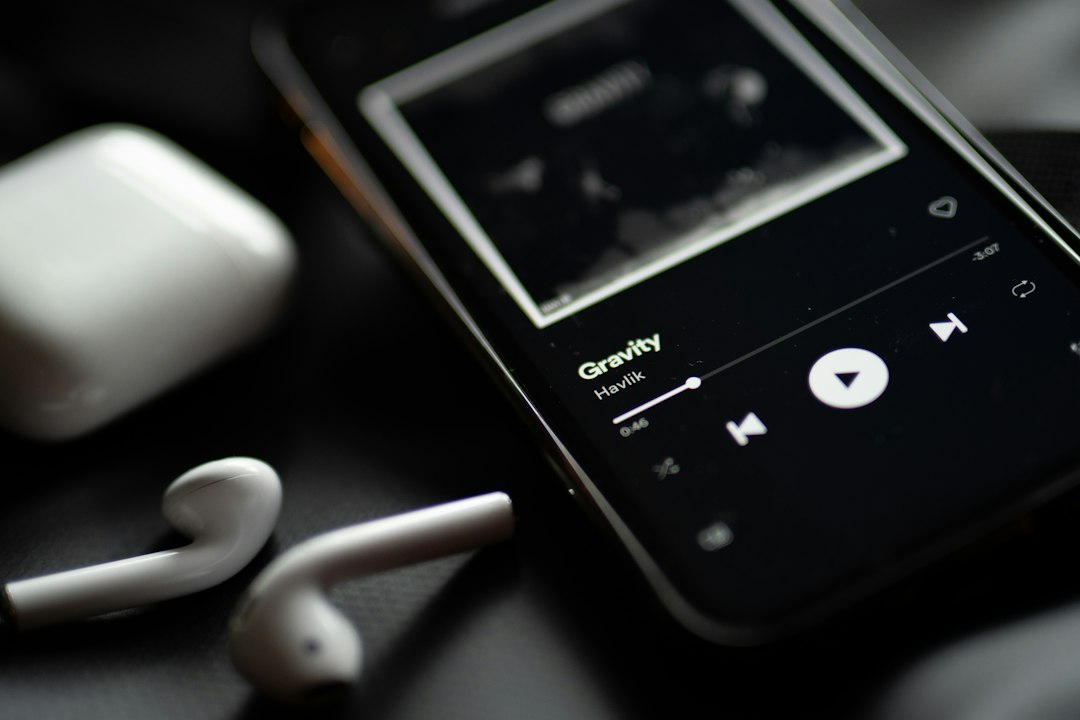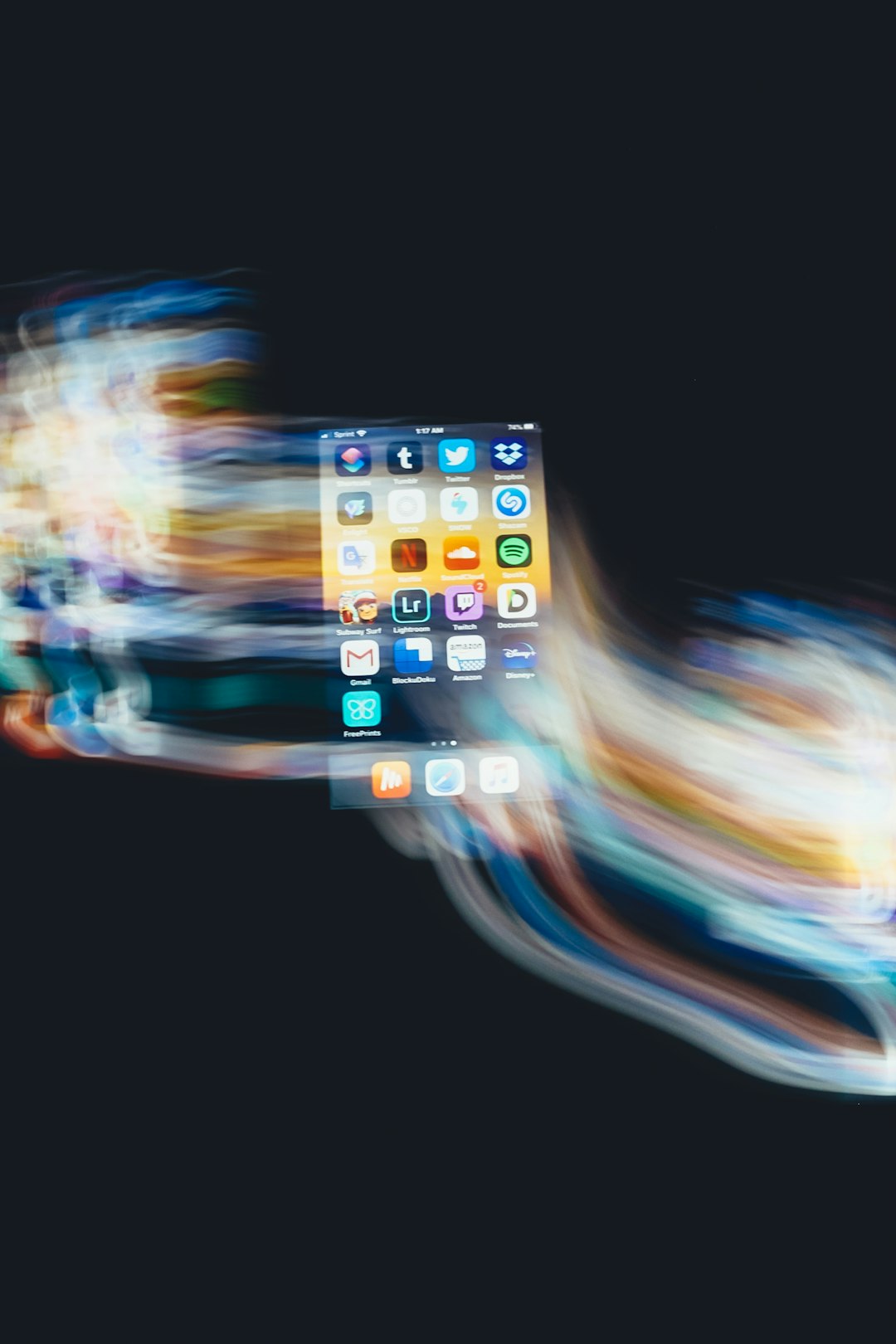
The fastest way to make a moving home screen is to choose a short looping video, convert it into a live wallpaper format, and set it through the device’s wallpaper settings or a trusted wallpaper app. A smooth loop of 3 to 8 seconds usually works best. It keeps the screen lively without draining the battery too quickly. For phones, subtle motion beats flashy effects almost every time.
TLDR: A moving home screen can be made with a short video, GIF, Live Photo, or animation app, then applied as a live wallpaper. Android gives the most freedom, while iPhone users usually get better results on the lock screen than the home screen. For example, a 6 second ocean clip under 15 MB may use far less storage and power than a 30 second 4K video. In one common user case, a student can turn a short pet video into a live wallpaper in under 5 minutes using a converter app.
What Counts as a Moving Home Screen?
A moving home screen is any phone, tablet, or computer home screen that uses motion instead of a still image. It may be a looping video, an animated wallpaper, a 3D scene, a Live Photo, or an interactive background that reacts to touch, time, or device movement.
The goal is simple: make the screen feel personal without making the device slower. The best moving wallpapers are short, clean, and easy to read behind app icons. A busy animation may look great in a preview, then become annoying after one day.
Best File Types for Animated Wallpapers
Different devices handle motion in different ways. That is where the setup can get irritating. Honestly, it feels like every platform uses a slightly different rule for the same basic idea.
- MP4 video: Best for Android apps and desktop wallpaper tools.
- GIF: Easy to find, but often lower quality and larger than expected.
- Live Photo: Best for iPhone lock screens.
- WEBM: Useful for some desktop tools, though support varies.
- 3D or interactive wallpapers: Often made inside special wallpaper apps.
For most users, MP4 is the safest starting point. It compresses well, looks sharp, and works with many converters.
How to Make a Moving Home Screen on Android
Android is the easiest system for live home screens. Most Android phones support live wallpapers directly, though the exact menu names vary by brand.
- Pick a short video. A clip between 3 and 10 seconds works best.
- Trim the clip. Remove shaky starts, blank frames, and awkward endings.
- Compress the file. Aim for 720p or 1080p, not huge 4K files.
- Open the wallpaper menu. This is often under Settings > Wallpaper & Style.
- Select live wallpaper. Some phones include this option by default.
- Use a video wallpaper app if needed. Choose one with good reviews and few permissions.
- Set it for the home screen. The phone may also offer a lock screen option.
Samsung, Xiaomi, Pixel, OnePlus, and Motorola devices may label these settings differently. The process is still similar. If the built-in option is missing, a reputable live wallpaper app can fill the gap.
How to Make a Moving Wallpaper on iPhone
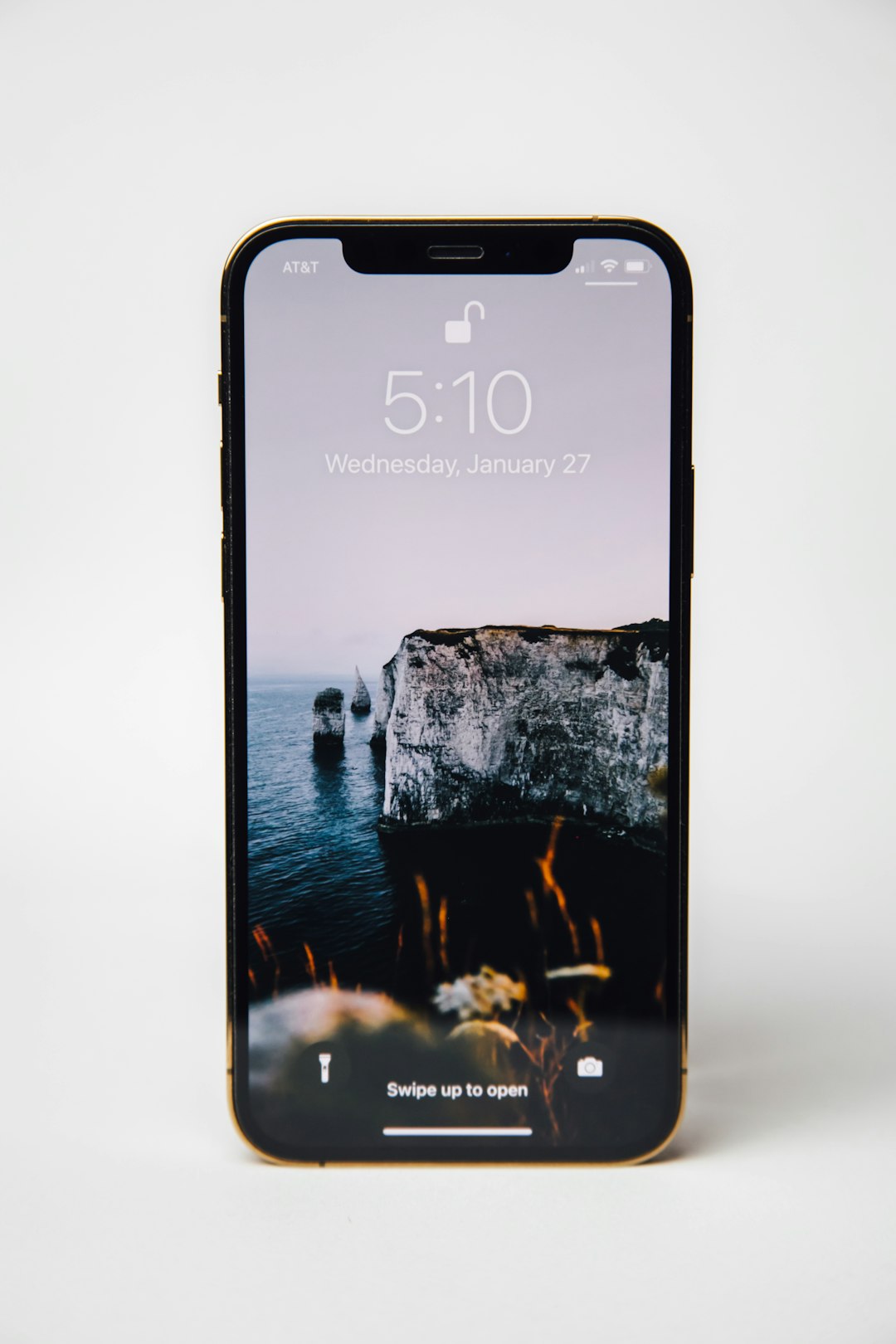
iPhone handles animated backgrounds with more limits. Apple supports motion best on the lock screen through Live Photos and selected animated wallpapers. The home screen itself is usually more restricted.
To create an animated lock screen on iPhone, the user can follow this process:
- Create or choose a short video.
- Convert the video into a Live Photo using a trusted converter app.
- Open Photos and check that the Live Photo plays correctly.
- Go to wallpaper settings and choose the Live Photo.
- Set it as the lock screen.
It drives people crazy that a clip may animate in Photos but act still when used elsewhere. That is normal on many iPhone setups. For the actual home screen, iPhone users often rely on themed widgets, app icons, depth effects, and still images that match the moving lock screen.
How to Make an Animated Desktop Background
Computers offer more room for motion. Windows users can use apps such as Lively Wallpaper or Wallpaper Engine. macOS users can use video wallpaper tools, animated screensavers, or web based wallpaper utilities.
The basic desktop process is simple:
- Choose a loopable video or animation.
- Install a wallpaper tool from a trusted source.
- Add the video file to the app.
- Set playback rules such as pause on battery or pause during games.
- Apply it to one monitor or all screens.
On desktops, performance matters. A high frame rate wallpaper may look smooth, but it can steal resources from games, design apps, and video calls. A 30 fps loop is often enough. A 60 fps wallpaper is rarely needed.
How to Create a Good Loop
A moving wallpaper feels polished when the end connects cleanly to the beginning. A bad loop jolts every few seconds, and the eye catches it fast.
- Use slow motion. Clouds, water, smoke, stars, fabric, and soft lights loop well.
- Avoid huge camera moves. They make seams obvious.
- Match the first and last frame. Similar lighting and shape help.
- Fade if needed. A tiny crossfade can hide the cut.
- Keep icons readable. Darken or blur the clip if app names get lost.
Simple edits can be done in mobile video editors. The creator only needs trim, crop, speed, blur, and export controls. Fancy effects are optional.
Recommended Size, Length, and Style
The best animated wallpaper is not the biggest one. It is the one that looks clean and runs quietly.
- Length: 3 to 8 seconds for phones, up to 20 seconds for desktops.
- Resolution: 1080p is enough for most phones.
- Frame rate: 24 to 30 fps is usually fine.
- File size: Under 20 MB is a smart phone target.
- Brightness: Medium or dark backgrounds work better with icons.
- Motion level: Subtle movement feels better for daily use.
Battery drain depends on the device, brightness, wallpaper app, and animation type. A heavy live wallpaper can reduce daily battery life, especially on older phones. If the phone gets warm while idle, the wallpaper is probably too demanding.
Common Mistakes to Avoid
- Using long videos. They waste storage and may lag.
- Choosing bright busy clips. They make icons harder to read.
- Skipping compression. Large files slow the setup.
- Ignoring permissions. Wallpaper apps should not need contacts or messages.
- Using copyrighted clips carelessly. Personal use is safer, but sharing may not be allowed.
- Forgetting battery settings. Pause motion when battery saver is on.
Best Ideas for Moving Home Screens
Good animated backgrounds match the device owner’s routine. A calm screen suits work and school. A bold screen may fit gaming or music setups.
- Nature loops: Rain, waves, leaves, clouds, snow, and fireflies.
- Minimal motion: Soft gradients, slow particles, and glowing shapes.
- Personal clips: Pets, travel scenes, sports moments, or family memories.
- Anime and game style: Best when cropped cleanly and kept subtle.
- Space themes: Stars, planets, orbit effects, and aurora lights.
FAQ
Can a moving wallpaper be used on any phone?
Most Android phones support live wallpapers. iPhones support animation mainly on the lock screen, with more limits on the home screen.
Does a moving home screen drain battery?
Yes, it can. Short, dark, low motion wallpapers use less power than bright 4K clips or interactive effects.
What is the best format for a moving wallpaper?
MP4 is best for many Android and desktop setups. Live Photo is best for iPhone lock screens.
How long should an animated wallpaper be?
A phone wallpaper should usually be 3 to 8 seconds. Desktop backgrounds can be longer, but shorter loops are easier to manage.
Can a GIF be used as a live wallpaper?
Yes, some apps allow it. Still, MP4 often looks better and uses storage more efficiently.
Why is the wallpaper not moving on iPhone?
The file may not be a Live Photo, the screen may not support that motion, or the wallpaper may be set to the home screen instead of the lock screen.
Is it safe to use live wallpaper apps?
It can be safe if the app is trusted, updated, and asks for reasonable permissions. A wallpaper app should not need private messages, contacts, or call logs.