The fastest way to download an email as a PDF is to open the message, choose Print, then select “Save as PDF” or “Microsoft Print to PDF” as the printer. This works in Gmail, Outlook, Yahoo Mail, Apple Mail, and most other email platforms. The exact buttons differ, but the core process is the same: open the email, print it, save it as a PDF file, then name and store it safely.
TLDR: Open the email, click the print option, choose Save as PDF, and save the file to your computer or cloud storage. For example, a finance assistant archiving 75 invoice emails per month can save each message as a PDF and store it by client name and date. In many offices, this cuts retrieval time from several minutes to under 30 seconds per record. Always check whether attachments need to be saved separately.
Why Save an Email as a PDF?
Email apps are good for communication, not long-term record keeping. A PDF is easier to file, share, print, and attach to a case file or client folder. It also keeps the message content stable, so it is less likely to change because of mail app updates or deleted threads.
Common reasons to save email messages as PDFs include:
- Legal records: contracts, approvals, disputes, and notices.
- Finance: invoices, receipts, payment confirmations, and purchase orders.
- HR: offer letters, policy acknowledgments, and employee communications.
- Client work: project approvals, scope changes, and delivery confirmations.
- Personal records: travel bookings, warranties, medical messages, and school emails.
The catch is that email platforms rarely use the phrase “Download as PDF.” They usually hide the function under Print. That small wording issue causes a lot of needless clicking.
How to Download a Gmail Email as a PDF
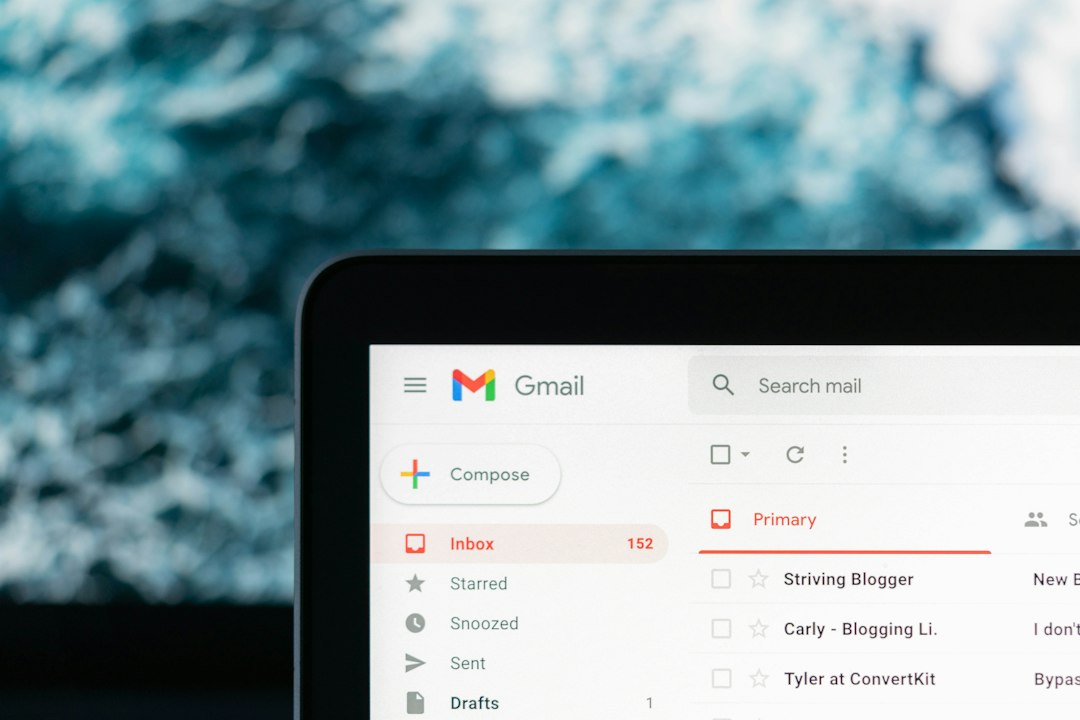
Gmail does not offer a direct “Export to PDF” button for a single message. Use the print feature instead.
- Open Gmail in your browser.
- Open the email message you want to save.
- Click the three-dot menu in the upper-right area of the message.
- Select Print. A print preview window will open.
- Under Destination, choose Save as PDF.
- Choose the page range if needed.
- Click Save.
- Name the file clearly, such as 2026-02-14 Client Approval Email.pdf.
- Select the folder where you want to store it.
If the email is part of a thread, Gmail may print more than one message. Expand or collapse the thread before printing if you only want a specific reply. It drives me crazy that one extra expanded reply can turn a clean one-page PDF into a nine-page file. Check the preview before saving.
How to Save an Outlook Email as a PDF
Outlook has several versions. The steps are slightly different for Outlook on the web, classic Outlook for Windows, new Outlook, and Outlook for Mac.
Outlook on the Web
- Open Outlook.com or Microsoft 365 Outlook in your browser.
- Open the message you want to save.
- Click the three-dot menu near the top of the message.
- Select Print.
- In the printer options, choose Save as PDF.
- Click Save and choose a folder.
Classic Outlook for Windows
- Open the email in Outlook.
- Click File.
- Select Print.
- Choose Microsoft Print to PDF as the printer.
- Click Print.
- Enter a file name and save location.
If “Microsoft Print to PDF” is missing, it may be disabled in Windows features. You can also use a trusted PDF printer installed by your organization, but avoid unknown PDF tools for confidential messages.
Outlook for Mac
- Open the message in Outlook.
- Click File, then Print.
- In the print dialog, click the PDF menu.
- Choose Save as PDF.
- Name the file and save it.
How to Download a Yahoo Mail Email as a PDF
Yahoo Mail also relies on the print method.
- Open Yahoo Mail.
- Open the email you want to convert.
- Click the Print icon, usually near the top-right of the message.
- Choose Save as PDF as the destination.
- Click Save.
- Pick a folder and use a clear file name.
If ads or side panels appear in the print preview, make sure you are printing the email message itself, not the full browser page. Use the email’s own print icon when possible.
How to Save an Apple Mail Message as a PDF
Apple Mail makes this fairly clean on macOS.
- Open Apple Mail.
- Select the message you need.
- Click File, then Export as PDF if available.
- Choose a folder and save the file.
If you do not see Export as PDF, use this method:
- Open the email.
- Click File, then Print.
- Click the PDF button in the print window.
- Select Save as PDF.
How to Save Emails as PDFs on iPhone or iPad
Mobile email apps can save PDFs, but the controls are less obvious.
- Open the email in the Mail app, Gmail app, or Outlook app.
- Tap the Share icon or the three-dot menu.
- Choose Print.
- On iPhone or iPad, pinch outward on the print preview to open it as a PDF.
- Tap the Share icon again.
- Save it to Files, iCloud Drive, Google Drive, or another storage app.
Honestly, it feels like this should take two taps, not six. Still, the method works well once you know where Apple hides the PDF preview.
How to Save Emails as PDFs on Android
- Open the email in Gmail, Outlook, Samsung Email, or another mail app.
- Tap the three-dot menu.
- Select Print.
- Choose Save as PDF from the printer drop-down.
- Tap the PDF or Save icon.
- Choose a location on your device or in cloud storage.
Android menus vary by manufacturer. If you do not see Print, try opening the same email in a browser instead of the mail app.
Image not found in postmetaDo Attachments Save Inside the PDF?
Usually, no. Saving an email as a PDF captures the message body, sender, recipients, subject, date, and visible content. Attachments often remain outside the PDF unless they are displayed inline.
For proper records, save attachments separately and store them in the same folder as the email PDF. Use matching file names, such as:
- 2026-03-08 Vendor Quote Email.pdf
- 2026-03-08 Vendor Quote Attachment.pdf
- 2026-03-08 Vendor Quote Terms.docx
Best Practices for Clean Email PDFs
- Check the preview before saving. Make sure the full message appears.
- Use clear names. Include the date, sender, client, or subject.
- Keep the original email if the matter is sensitive. A PDF is useful, but the original message may include technical header data.
- Save attachments separately. Do not assume they are included.
- Protect private files. Use encrypted storage for legal, medical, HR, or financial emails.
- Avoid public computers. Downloaded PDFs may remain in temporary folders.
When a PDF Is Not Enough
A PDF is excellent for reading and sharing. It is not always enough for audits, litigation, or forensic review. If you need full email metadata, ask your IT team about exporting the message as .eml, .msg, or through an approved email archive system.
For everyday use, though, printing to PDF is reliable and simple. Gmail, Outlook, Yahoo Mail, Apple Mail, iPhone, iPad, and Android all support it in some form. Open the message, choose print, select PDF, and save the file with a name you can find later. That is the whole job.