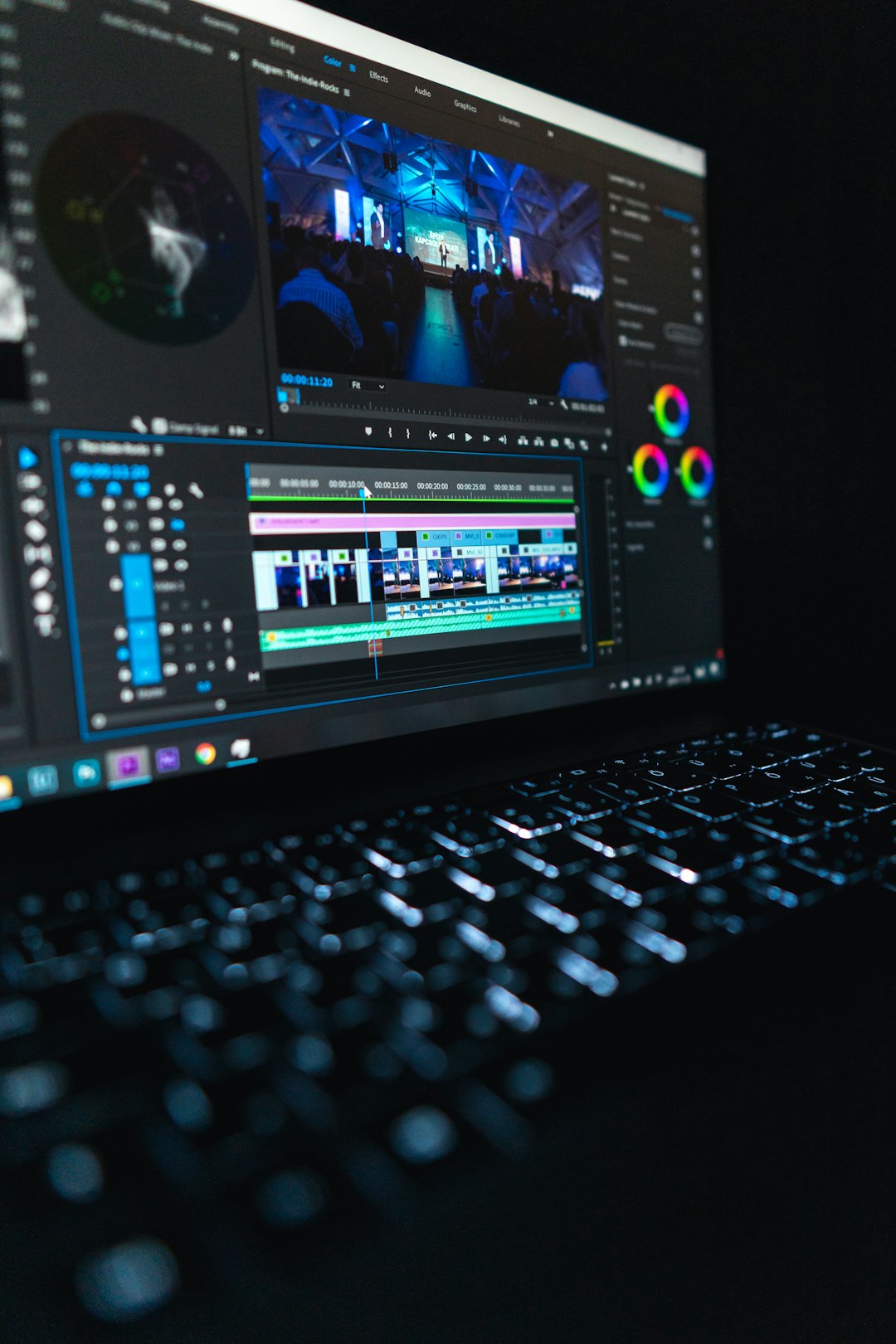
The best AI video editing app in 2026 is the one that removes the boring work first. For most creators, that means Descript for talking videos, CapCut for social clips, Runway for wild AI effects, and Adobe Premiere Pro for pro work.
TLDR: If you make short videos every week, start with CapCut or VEED. If you edit podcasts, courses, or YouTube videos, pick Descript. A solo creator can cut editing time by 40% to 70% by using auto captions, silence removal, and AI clip picking. For example, a 45-minute interview can become six short clips in under 20 minutes with OpusClip or Descript.
What Makes an AI Video Editor Great in 2026?
AI video editing is no longer just “auto captions.” That was cute in 2021. Now the best apps can cut pauses, find highlights, clean audio, generate B-roll, change backgrounds, create avatars, and resize one video for five platforms.
The best tools do five things well:
- Cut faster: Remove silence, filler words, and dead air.
- Add captions: Make clean, readable subtitles in seconds.
- Create effects: Add motion, transitions, and background changes.
- Generate content: Make clips, scripts, voiceovers, or visuals.
- Export easily: Send videos to TikTok, YouTube, Reels, or clients.
Honestly, it feels like some apps still hide basic export settings behind three menus. That gets old fast. The winners below keep things simple.
1. Descript: Best for Podcasts, Talking Heads, and Courses
Descript is the closest thing to editing video like a Google Doc. You change the transcript, and the video changes too. Delete a sentence from the text, and it disappears from the video.
It is great for:
- YouTube talking videos
- Podcast clips
- Online courses
- Webinars
- Interviews
Its best AI tools include filler word removal, studio sound, eye contact correction, and automatic highlights. The audio cleanup is the star. Bad room echo can go from “recorded in a cave” to “pretty decent” in one click.
The catch is that heavy projects can feel slow. A long 4K file may take extra time to process. Still, for speech-heavy content, Descript is a top pick.
2. CapCut: Best Free AI Video Editing App for Social Media
CapCut is everywhere for a reason. It is fast, fun, and packed with social-ready AI tools. If your main goal is TikTok, Instagram Reels, or YouTube Shorts, start here.
CapCut shines with:
- Auto captions with trendy styles
- Background removal without a green screen
- AI templates for quick edits
- Text to speech voices
- Auto resizing for vertical video
It is also friendly to beginners. You can open the app, drop in clips, tap a template, and have a video ready before your coffee cools.
It drives me crazy that some effects feel overused because everyone grabs the same templates. Your video can look like 9,000 other videos. Change the fonts, pacing, and colors if you want to stand out.
3. Runway: Best for Generative AI Video Effects
Runway is for creators who want video magic. It can generate video from text, extend shots, remove objects, change styles, and create surreal scenes.
Use Runway for:
- AI B-roll
- Music videos
- Concept ads
- Visual experiments
- Scene extensions
This is not the best app for cutting a normal vlog. It is best when you need something strange, bold, or impossible to film. Want a sneaker floating through a neon city? Runway can help. Want a castle made of jelly? Also yes.
The results can be amazing. They can also be weird. Hands may look odd. Faces may shift. Expect to rerun prompts a few times.

4. Adobe Premiere Pro: Best for Professional Editors Who Want AI Help
Adobe Premiere Pro is still a major choice for serious editors. The AI tools are not there to replace all editing. They are there to speed up the boring parts.
Premiere Pro is best for:
- Client projects
- Commercials
- Documentaries
- Long YouTube videos
- Team workflows
Its AI features include text-based editing, speech enhancement, auto captions, scene edit detection, and smart color tools. It also works well with After Effects, Photoshop, and Audition.
The downside is clear. Premiere Pro has a learning curve. If you only need captions and jump cuts, it may feel like bringing a forklift to move a sandwich.
5. DaVinci Resolve: Best for Color, Audio, and Serious Editing
DaVinci Resolve is powerful. Very powerful. It combines editing, color grading, sound, effects, and delivery in one app.
Its AI tools help with:
- Face tracking
- Object masking
- Voice isolation
- Smart reframing
- Scene cuts
Resolve is a great choice if you care about color. Food videos, fashion clips, music videos, and short films can look polished fast. The free version is also generous.
But it is not the easiest app here. New users may open it and panic. Give yourself a weekend to learn the basics.
6. VEED: Best Browser-Based AI Editor
VEED is simple and browser-based. No big install. No monster setup. It is great for teams, marketers, teachers, and small businesses.
VEED offers:
- Auto subtitles
- Translation
- Screen recording
- AI avatars
- Noise cleanup
It is perfect for quick training videos, product explainers, and social clips. You can record, edit, caption, and share from one place.
The weak spot is deep editing. If you need frame-level control, use Premiere Pro or Resolve instead.
7. OpusClip: Best for Turning Long Videos into Shorts
OpusClip is built for one job: turning long videos into short clips. It scans your video, finds strong moments, adds captions, and gives each clip a score.
It is great for:
- Podcast creators
- Coaches
- Webinar hosts
- YouTubers
- Live streamers
A one-hour video may produce 10 to 20 short clip ideas. Not all will be gold. Some will be awkward. But it is still faster than scrubbing through the whole video yourself.
8. Canva: Best for Simple Branded Videos
Canva is best when your video needs to look clean, branded, and quick. It is not a deep editor. It is a content machine.
Use Canva for:
- Ads
- Slideshows
- Instagram videos
- Product promos
- Simple explainers
Its AI tools can help with design, text, background removal, and quick video layouts. Teams will like the brand kits. You can keep fonts, logos, and colors consistent without nagging everyone in Slack.
9. Pika: Best for Fast AI Video Generation
Pika is a fun choice for text-to-video and image-to-video creation. It is useful for short concept clips, memes, ads, and visual ideas.
Pika is not a full editing suite. Think of it as an AI clip generator. You create the shots there, then finish the edit in CapCut, Premiere Pro, or Canva.
Best App by Use Case
- Best overall for creators: Descript
- Best for social media: CapCut
- Best for AI effects: Runway
- Best for pro editors: Adobe Premiere Pro
- Best for color grading: DaVinci Resolve
- Best browser editor: VEED
- Best long-to-short tool: OpusClip
- Best for branded quick videos: Canva
- Best text-to-video tool: Pika
How to Pick the Right AI Video Editing App
Do not start with the flashiest feature. Start with your content type.
If you talk on camera, choose Descript. If you post daily Shorts, choose CapCut. If you edit client work, choose Premiere Pro or DaVinci Resolve. If you need AI visuals, choose Runway or Pika.
Also check pricing, export limits, watermark rules, and caption quality. A “free” tool is not so free when it stamps a giant logo over your face.
Final Pick
For most people in 2026, the smartest combo is Descript plus CapCut. Use Descript to clean and cut the main video. Use CapCut to create fast vertical clips with captions and effects.
If you want to add a big creative twist, add Runway. If you need pro control, use Premiere Pro or DaVinci Resolve. The best AI editor is not the one with the longest feature list. It is the one that helps you finish the video before you lose the will to post it.