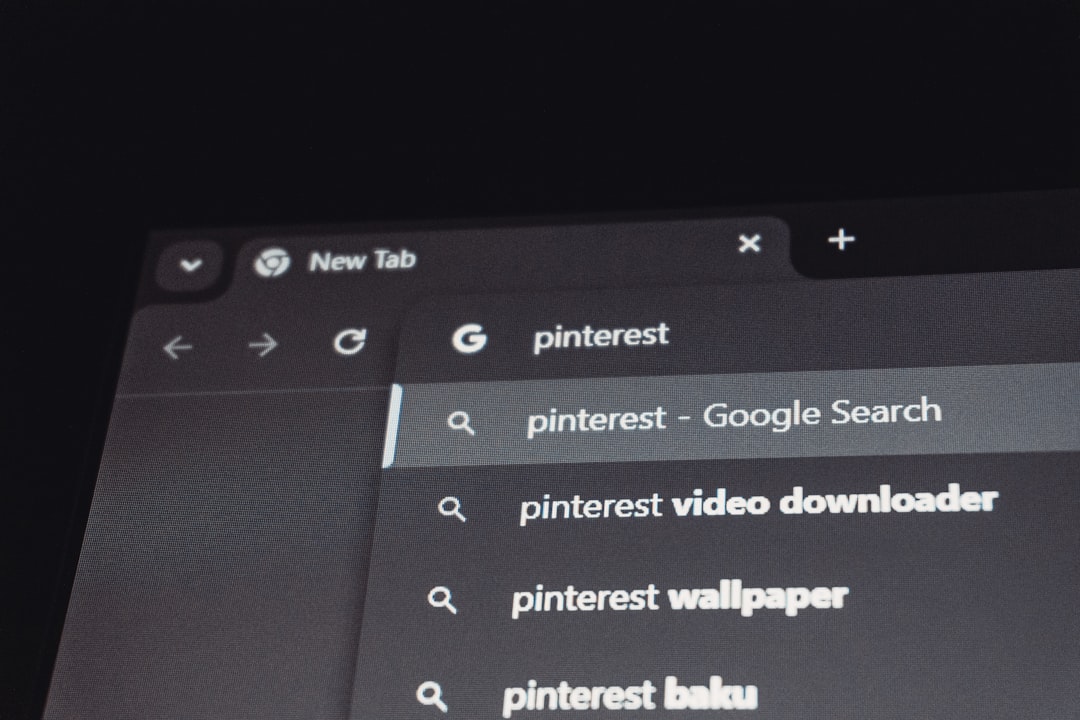
The fastest way to search keywords in a PDF is to first identify whether the file contains selectable text or only scanned images. If the text can be highlighted with a cursor, a standard search tool can usually find it. If the page is just a picture of text, the document needs OCR, or optical character recognition, before keyword search works well.
TLDR: A PDF with embedded text can be searched with Ctrl + F or Command + F, while a scanned PDF needs OCR first. For example, a legal assistant reviewing 240 pages may find “termination clause” in under 10 seconds in a text PDF, but may waste 15 minutes on a scanned file without OCR. Advanced tools can search multiple PDFs, match exact phrases, filter by metadata, and flag misspellings. The best workflow is: test the text, run OCR if needed, then use advanced search for large files or folders.
First, Check Whether the PDF Has Embedded Text
PDFs are not all built the same way. Some contain real text stored inside the file. Others are just page images, often created by scanners, fax systems, or mobile scanning apps.
The quick test is simple. A person can try to drag across a sentence with the mouse or trackpad. If the words highlight cleanly, the PDF likely has embedded text. If the whole page acts like one flat image, the file is probably scanned.
This one check prevents a lot of wasted effort. Honestly, it feels like PDF search should just work everywhere, but scanned files still trip up many users. A search for “invoice” may return zero results even when the word appears 30 times on the page.
How Basic Keyword Search Works in Text PDFs
For PDFs with embedded text, keyword search is direct. Most PDF readers support a basic find command:
- Windows: Press Ctrl + F.
- Mac: Press Command + F.
- Browser PDF viewer: Use the search field in Chrome, Edge, Firefox, or Safari.
- Mobile PDF apps: Tap the magnifying glass icon.
After entering a keyword, the reader highlights matching results. Some tools show a count, such as 1 of 18. This is useful when checking contracts, manuals, reports, academic papers, invoices, and policy documents.
Search terms should be short at first. If “employee reimbursement policy” finds nothing, “reimbursement” may work. If a word has alternate spellings, each version may need its own search. For example, “canceled” and “cancelled” may not be treated as the same word.
Use Phrase Search for Better Accuracy
Single-word searches can return too many hits. A 300-page report may contain “risk” hundreds of times. Phrase search helps narrow the results.
Many PDF tools allow quoted searches, such as:
- “data retention”
- “force majeure”
- “net payment terms”
Exact phrase search is best for contracts, research papers, HR files, and technical guides. It cuts noise and takes the user straight to the relevant sentence. The catch is that some basic viewers do not treat quotation marks as exact-match operators. In those cases, a stronger PDF reader may be needed.
Why Scanned PDFs Need OCR
OCR turns text images into searchable text. It scans each page, recognizes letters, and stores a hidden text layer inside the PDF. After OCR, the file still looks the same, but search tools can read the words.
OCR is essential for:
- Scanned contracts
- Old archives
- Receipts and invoices
- Medical or legal records
- Government forms
- Books scanned from paper
OCR quality depends on the source. Clean black text on a white page gives strong results. Crooked scans, faded ink, handwriting, stamps, and low-resolution images reduce accuracy. A 300 DPI scan usually performs better than a blurry phone photo.
How to Run OCR Before Searching
Many PDF editors include OCR. The general process is similar across tools:
- Open the scanned PDF in a PDF editor with OCR support.
- Select the OCR or “Recognize Text” option.
- Choose the document language.
- Select all pages or a page range.
- Run OCR and save the new searchable PDF.
- Use keyword search again.
Language selection matters. A French invoice processed as English may produce odd results. Mixed-language files may need separate treatment or a tool that supports multilingual OCR.
It drives people crazy when OCR adds a 40-second delay before a simple search. Still, that delay is better than reading every page by hand. For large archives, batch OCR can process entire folders overnight.
Advanced Search Tools for Large PDF Collections
Basic search works for one file. Advanced search is better for dozens, hundreds, or thousands of PDFs. These tools can search folders, indexes, metadata, comments, bookmarks, and attachments.
Common advanced search features include:
- Folder search: Search every PDF in a selected folder.
- Exact phrase matching: Find only the full phrase in order.
- Boolean search: Use terms such as AND, OR, and NOT.
- Wildcard search: Find word variations, such as contract* for contract, contracts, and contractual.
- Proximity search: Find words that appear near each other.
- Case-sensitive search: Separate US from us.
- Metadata search: Search by author, title, subject, or creation date.
For example, a compliance team could search a folder of 1,200 PDFs for “personal data” AND “retention”. That returns files where both ideas appear, instead of every file that mentions only one term.
Search Operators That Save Time
Advanced search becomes far more useful when operators are used carefully. A few simple patterns can cut review time fast.
- AND: Finds documents containing both terms. Example: invoice AND overdue.
- OR: Finds either term. Example: attorney OR lawyer.
- NOT: Excludes terms. Example: contract NOT draft.
- Quotes: Searches an exact phrase. Example: “purchase order”.
- Wildcard: Finds word stems. Example: pay* may match pay, paid, payment, and payable.
Not every PDF application supports every operator. Search syntax can differ, so a short test search is wise before a large review begins.
Common Reasons PDF Keyword Search Fails
When a keyword search returns nothing, the word may still be present. Common causes include:
- The PDF is scanned and has no OCR text layer.
- OCR misread letters, such as 0 instead of O.
- The term is split across lines or columns.
- The word appears inside an image, chart, or stamp.
- The PDF uses unusual fonts or encoding.
- The user searched for the wrong spelling or tense.
- The document has security restrictions.
One practical fix is to search shorter terms. If “confidentiality agreement” fails, search “confidential” or “agreement.” If OCR quality is poor, rerunning OCR with a better scan may help.
Best Practices for Reliable PDF Search
A strong PDF search process is simple and repeatable:
- Test the file first. Try selecting text on the page.
- Run OCR if needed. Save a searchable copy.
- Start broad. Search one key word before using long phrases.
- Use exact phrases. Add quotes when the tool supports them.
- Try variants. Search plural forms, abbreviations, and alternate spellings.
- Use advanced search for folders. Do not open 80 PDFs one by one.
- Check OCR accuracy. Review a few highlighted results before trusting the full count.
For teams, file naming also helps. A folder full of files named scan001.pdf is painful. Names such as 2024 vendor contract acme.pdf make both search and review easier.
FAQ
Why can a PDF show text but still not be searchable?
The visible words may be part of a scanned image. In that case, the PDF needs OCR before keyword search can detect the text.
What is the best shortcut for searching inside a PDF?
On Windows, the shortcut is Ctrl + F. On Mac, it is Command + F. Most PDF readers and browser viewers support these commands.
Does OCR always find every word correctly?
No. OCR accuracy depends on scan quality, language settings, font clarity, page angle, and image resolution. Poor scans often produce missed or incorrect words.
Can multiple PDF files be searched at once?
Yes. Advanced PDF search tools can search entire folders. Some also create indexes for faster searching across large document collections.
What is the fastest way to find an exact phrase?
An exact phrase search is usually best. The searcher can place the phrase in quotation marks, such as “service level agreement”, if the PDF tool supports that syntax.
Why does a search find too many results?
The keyword may be too broad. A search for “policy” can produce hundreds of hits. A more specific phrase, such as “refund policy”, usually works better.