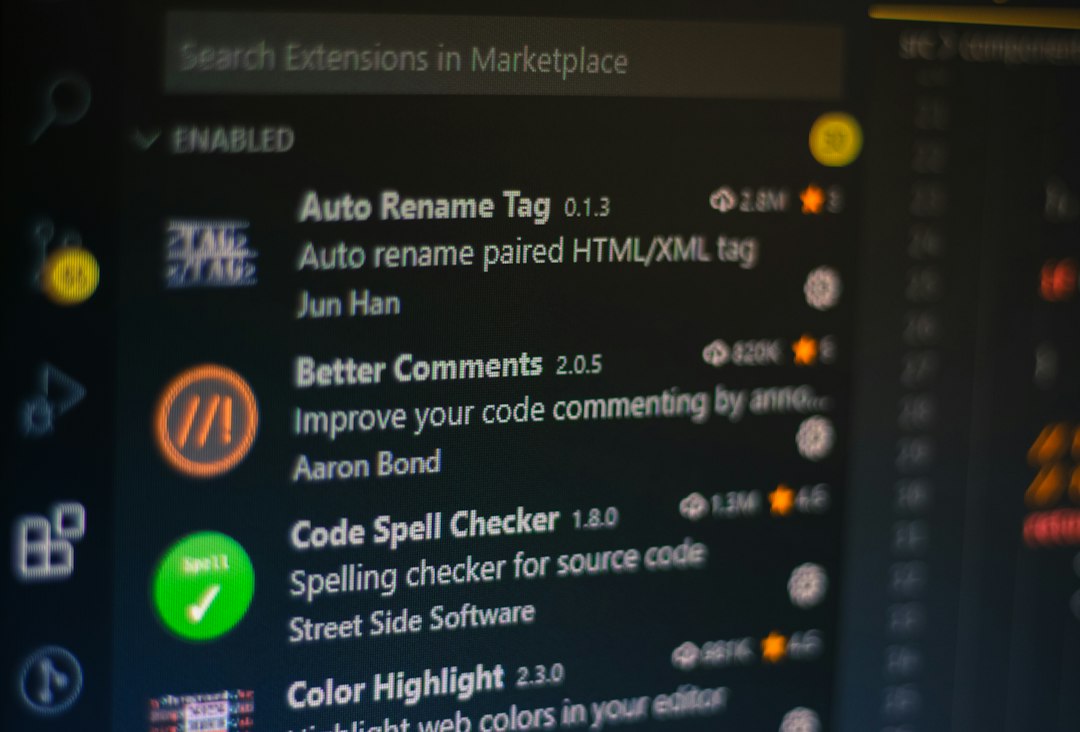
WordPress is usually the better choice for content-heavy sites that need many anchor links, while Webflow feels cleaner for designers building polished pages with fewer moving parts. Both tools support anchor links well, but they handle them in different ways. WordPress gives more plugin options, editor flexibility, and content scale. Webflow gives tighter visual control and simpler section-based linking.
TLDR: For anchor links, WordPress suits blogs, documentation hubs, service pages, and SEO-driven sites with lots of internal jumps. Webflow suits landing pages, portfolios, and marketing pages where sections are carefully designed. For example, a 25-section pricing guide in WordPress may take 15 minutes to structure with a table of contents plugin, while the same setup in Webflow may take closer to 30 minutes because each section ID often needs manual handling.
What Anchor Links Do
An anchor link sends a visitor to a specific section of a page instead of loading a new page. It usually points to an ID, such as #pricing, #features, or #faq. On long pages, this small feature can make a site feel much easier to use.
Anchor links are common in:
- FAQ sections
- Table of contents blocks
- Landing page menus
- Product comparison pages
- Documentation and help articles
They also help search engines understand page structure. A clear anchor setup can support sitelinks, featured snippets, and better on-page behavior signals.

WordPress Anchor Links: Flexible but Sometimes Messy
WordPress handles anchor links through the block editor, classic editor, themes, plugins, and page builders. This flexibility is its biggest strength. It is also the source of its most annoying moments.
In the block editor, a content manager can select a heading, open the advanced settings, and add an HTML anchor. A link can then point to that anchor with a hash value. For example, a button can link to #contact, and the page will jump to the contact section.
The best part: WordPress works well at scale. A publishing team can add anchor links to hundreds of posts, auto-build tables of contents, and manage large content libraries. Plugins can create anchor menus from headings automatically. That saves time on long articles and knowledge bases.
The catch is that WordPress can feel scattered. One theme may add smooth scrolling. Another may not. Some page builders use their own anchor fields. A plugin may create IDs that differ from the ones expected. It drives many teams a bit mad when a simple jump link breaks after a theme update.
Webflow Anchor Links: Clean Control for Visual Pages
Webflow treats anchor links in a more visual way. A designer can assign an ID to a section and link buttons, menu items, or text links to that section. For landing pages, this feels direct and tidy.
Webflow is especially strong when anchor links are part of the design. Sticky menus, section-based scrolling, and polished campaign pages are easier to control. The designer sees the page layout while assigning links, so fewer surprises happen during review.
Still, Webflow can be slower for content teams. If a site has 80 long articles, each with its own table of contents, Webflow becomes more manual. CMS templates can help, but anchor IDs inside rich text content are not as quick to manage as they are in a WordPress editorial workflow.
Honestly, it feels like Webflow makes simple pages feel premium, but large content operations may spend extra time on repetitive setup.
Image not found in postmetaEase of Setup
WordPress is easier for writers and editors. A heading can become an anchor inside the editor. Plugins can generate anchor links from page headings. This suits teams that publish often.
Webflow is easier for designers. The process is visual, clear, and tied to sections. A designer can create a polished one-page layout with anchor menu links in a short session.
For a small business service page with five sections, Webflow may feel faster. For a 3,000-word guide with 12 headings and a table of contents, WordPress usually wins.
SEO and User Experience
Anchor links can improve search performance when used with strong headings. They break long pages into clear parts. Visitors find answers faster. That can reduce bounce rates and improve engagement.
WordPress has an edge for SEO-heavy anchor use because of its plugin ecosystem. SEO plugins, table of contents tools, schema plugins, and internal linking tools can all work together. This is useful for blogs, review sites, and documentation hubs.
Webflow can still perform very well. Clean code, strong design control, and fast hosting help. But advanced anchor automation needs more planning. For teams that care about every heading, slug, and jump link, WordPress offers more shortcuts.
Design Control
Webflow wins on visual control. Anchor links can be built into smooth page experiences with fixed headers, animated sections, and custom states. Designers can tune spacing so anchored sections do not hide behind sticky menus.
WordPress depends more on the theme or builder. Some setups handle offset spacing well. Others need custom CSS. Expect to waste a few extra minutes when a sticky header covers the target heading after the jump. It is a small issue, but it shows up often.
Best Use Cases
- Choose WordPress for blogs, SEO content, learning hubs, product docs, affiliate sites, and FAQ-heavy pages.
- Choose Webflow for agency sites, startup landing pages, portfolios, event pages, and brand-focused one-page sites.
- Use WordPress when non-technical editors manage content daily.
- Use Webflow when designers need precise control over layout and interactions.
Common Anchor Link Problems
Both platforms can run into the same basic issues. IDs must be unique. Links must match those IDs exactly. A link to #Pricing may not work if the section ID is #pricing. Small differences matter.
Sticky headers also create problems. The page may jump to the right section, but the heading may sit hidden under the menu. WordPress often needs CSS or plugin settings to fix this. Webflow usually handles it with spacing and section layout adjustments.
Another common issue is broken links after content edits. If a heading changes, the anchor may also need updating. WordPress plugins can reduce this risk. Webflow requires careful content control.
Final Verdict
WordPress is the better anchor link system for scale, publishing, and SEO workflows. It gives teams more automation and more ways to manage long content. It can be messy, but it is powerful.
Webflow is better for design-led pages where anchor links support a polished scrolling experience. It is clean, visual, and precise. It just becomes less efficient when many pages need detailed anchor structures.
For most content-heavy websites, WordPress is the safer choice. For high-end landing pages and brand sites, Webflow is hard to beat.
FAQ
Are anchor links good for SEO?
Yes. Anchor links can help search engines understand page sections. They also help visitors reach answers faster, which can support better engagement.
Is WordPress better than Webflow for anchor links?
WordPress is better for large content sites, blogs, and pages that need automatic tables of contents. Webflow is better for visual landing pages and custom section-based designs.
Can Webflow create smooth scrolling anchor links?
Yes. Webflow supports section IDs and links to those sections. It also gives designers strong control over spacing, layout, and scroll behavior.
Do anchor links work on mobile?
Yes. Anchor links work on mobile, but sticky headers can cover section titles. Both WordPress and Webflow may need spacing adjustments for smaller screens.
What is the biggest WordPress anchor link problem?
The biggest problem is inconsistency across themes, plugins, and page builders. A setup that works in one theme may need tweaks in another.
What is the biggest Webflow anchor link problem?
The biggest problem is manual setup at scale. Webflow is clean for a few pages, but large article libraries can take more time to manage.