Office automation works best when it removes repeatable work before it reaches a human desk. The goal is not to replace people. It is to cut the boring steps: copying data, chasing approvals, sorting files, booking meetings, sending reminders, and retyping the same answer for the tenth time.
TLDR: Office automation connects software, rules, and AI assistants so routine tasks happen with less manual work. A small accounting team, for example, might cut invoice processing time from 12 minutes to 3 minutes per invoice by using automated data extraction and approval routing. Teams often see the biggest gains in document handling, scheduling, customer replies, and internal requests. Start small, measure the time saved, then expand.
What Office Automation Really Means
Office automation is the use of digital tools to complete administrative work with minimal manual input. It can be as simple as an email rule that sorts messages into folders. It can also be as advanced as an AI assistant that drafts reports, summarizes calls, updates a CRM, and creates follow-up tasks.
The best systems connect daily tools such as email, calendars, chat apps, file storage, spreadsheets, project management platforms, accounting software, and customer databases. When these tools talk to each other, work moves faster and fewer details fall through the cracks.

Core Areas of Office Automation
1. AI assistants
AI assistants are now one of the most useful parts of office automation. They can draft emails, summarize long documents, prepare meeting notes, answer internal questions, and create first versions of proposals or reports.
For example, a sales manager can ask an AI assistant to summarize all open deals above $20,000, list risks, and suggest next steps. That used to mean checking the CRM, reading notes, and building a report by hand. Now it can take seconds.
The catch is that AI still needs review. It can misunderstand context, invent details, or miss tone. Use it for speed, not blind trust.
2. Workflow automation
Workflow automation moves tasks from one step to the next based on rules. Think of employee onboarding. Once HR marks a candidate as hired, the system can create an email account, send tax forms, assign training, notify payroll, and schedule an IT setup task.
Common workflow examples include:
- Approval chains: expense claims, purchase orders, contracts, and vacation requests.
- Task creation: turning form submissions into project tickets.
- Status updates: alerting teams when work changes stage.
- Escalations: sending reminders when deadlines are missed.
Honestly, it feels silly when someone still has to copy a form answer into three different systems. That kind of task is exactly where automation earns its keep.
Document Processing and Data Capture
Document processing is one of the highest-value areas for automation. Offices handle invoices, contracts, receipts, applications, onboarding forms, shipping papers, and reports every day. Manual entry is slow and error-prone.
Modern document automation can read PDFs, scanned pages, images, and digital forms. It extracts names, dates, totals, addresses, ID numbers, and line items. Then it sends that data into the right system.
Typical uses include:
- Extracting invoice numbers, vendors, tax amounts, and payment terms.
- Classifying contracts by type, region, renewal date, or risk level.
- Turning paper forms into searchable digital records.
- Flagging missing signatures or incomplete fields.
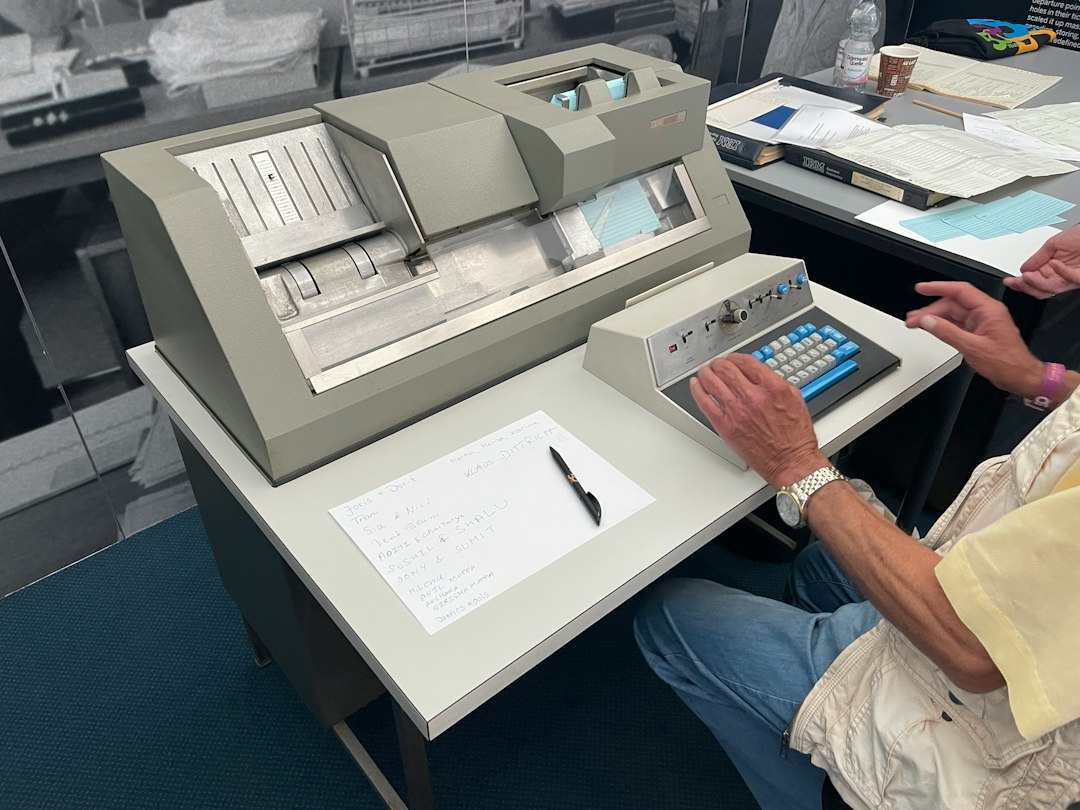
The real win is not just speed. It is consistency. If a finance team processes 2,000 invoices per month and reduces each one by 6 minutes, that saves 200 hours monthly. That is more than a full-time workload.
Communication Automation
Communication takes up a huge slice of office time. Emails, chat messages, follow-ups, status checks, and customer replies can eat the day alive. Automation helps keep messages timely and consistent.
Email automation can send welcome messages, renewal notices, meeting reminders, payment alerts, and support updates. Chatbots can answer common internal questions such as “Where is the expense form?” or “How do I reset my password?” Customer service bots can collect issue details before a human agent joins.
Good communication automation should feel helpful, not robotic. Keep messages short. Add human handoff options. Avoid sending five reminders when one clear message would do.
Useful examples:
- A client submits a request and receives an instant confirmation with a case number.
- A project stakeholder gets a weekly status summary every Friday morning.
- An overdue approval triggers a polite reminder after 48 hours.
- A support ticket is routed based on keywords, priority, or customer type.
Scheduling and Calendar Automation
Scheduling is simple until five people, three time zones, and two rescheduled meetings get involved. Then it becomes a mess.
Calendar automation reduces the back-and-forth. People can book open slots from a scheduling page. The system checks availability, creates video links, sends invites, and issues reminders. Some tools can also add buffer time, limit daily meetings, or suggest the best times for a group.

This is especially useful for sales calls, interviews, consultations, training sessions, and client check-ins. A recruiter booking 25 interviews per week can easily lose several hours to calendar coordination. Automation gives that time back.
Administrative Tasks Worth Automating First
Not every task should be automated right away. Start with work that is frequent, rule-based, and easy to measure.
Strong candidates include:
- Expense reports: capture receipts, match policy rules, and route approvals.
- Employee onboarding: send forms, assign tools, and schedule training.
- Data entry: move form responses into spreadsheets, CRMs, or databases.
- File organization: rename, tag, store, and archive documents.
- Reporting: compile metrics and send scheduled summaries.
- Procurement: collect requests, check budgets, and track approval status.
A simple rule helps: if someone performs the same task more than 10 times per week, review it for automation. If the task also involves copying data between apps, move it higher on the list.
How to Choose Office Automation Tools
Start with the problem, not the software. Many teams buy a tool first, then hunt for a use case. That creates shelfware. Pick one painful process and map every step.
Ask these questions:
- What triggers the task?
- Who owns each step?
- Where does the data come from?
- Which systems need updates?
- What errors happen most often?
- How will success be measured?
Then compare tools based on integration options, permissions, audit trails, ease of editing, AI features, reporting, and support. Security matters too. Any tool handling payroll, legal files, customer data, or health information must have strong access controls.
Common Mistakes to Avoid
Automating a broken process is the big one. If a five-step approval should only have two steps, fix that first. Automation will only make the bad process move faster.
Ignoring the people using the system is another issue. If the new workflow saves managers time but makes frontline staff upload the same file twice, adoption will drop.
Skipping maintenance also causes trouble. Forms change. Teams change. Policies change. Review automations every few months so they stay useful.
Expect to waste time on small setup details at first. A field name mismatch can break a workflow. A missing permission can stop a file transfer. Annoying? Yes. Worth fixing? Also yes.
Best Practices for a Smooth Rollout
- Start small: automate one process with clear value.
- Measure before and after: track time, errors, cost, and completion speed.
- Keep humans in control: use approvals for sensitive actions.
- Document the workflow: show triggers, rules, owners, and exceptions.
- Train users: explain what changes and where to get help.
- Improve over time: refine rules as real cases appear.
Office automation is not about making work feel colder. Done well, it removes the irritating parts of office life so people can focus on judgment, service, creativity, and decisions. Start with repetitive tasks, add AI where it helps, and keep the system simple enough for real people to trust.