Descript is usually the better choice when the transcript must become an edited video, while Otter.ai is stronger when meetings, interviews, and spoken notes need fast searchable text. Both can transcribe video to text, but they serve different workflows. Accuracy matters for accessibility too; the World Health Organization reports that more than 5% of the world’s population needs rehabilitation for disabling hearing loss [source: WHO].
TLDR: Descript suits creators who want to cut video by editing text, clean filler words, and export captions. Otter.ai suits teams that need quick transcripts from calls, lectures, and interviews, with speaker labels and searchable notes. For example, a marketing team with a 45-minute webinar may save roughly 2 to 3 hours by using Descript to transcribe, remove awkward pauses, and export an SRT file in one place. A sales team handling 12 customer calls per week may prefer Otter.ai because it organizes conversations and highlights action items faster.
Descript vs. Otter.ai at a Glance
Both tools turn video speech into text using automatic speech recognition. The difference is what happens after the words appear on screen.
- Descript: best for video editors, podcasters, YouTubers, course creators, and content teams.
- Otter.ai: best for meetings, interviews, sales calls, lectures, and internal documentation.
- Best for captions: Descript, because it connects transcription with video editing and export options.
- Best for live notes: Otter.ai, because it joins meetings and generates notes quickly.
- Best overall accuracy: close, but Descript often feels better for polished media workflows, while Otter.ai performs well with clear meeting audio.
The annoying part is that neither tool is perfect. Background noise, thick accents, crosstalk, and poor microphones still cause messy transcripts. Expect cleanup, especially when names, brands, and technical terms appear.

How Video Transcription Works
To transcribe video to text, the software extracts audio from the uploaded file. It then converts speech into written words. After that, it may add timestamps, speaker labels, captions, summaries, and export options.
A typical workflow looks like this:
- Upload the video or import it from a supported app.
- Choose the language if the tool does not detect it automatically.
- Wait for processing, usually a few minutes for shorter files.
- Review the transcript for mistakes, names, acronyms, and punctuation.
- Export the file as TXT, DOCX, PDF, SRT, VTT, or another format.
The real test is not just how fast the transcript appears. The better question is how much fixing it needs before it can be shared.
Descript for Video Transcription
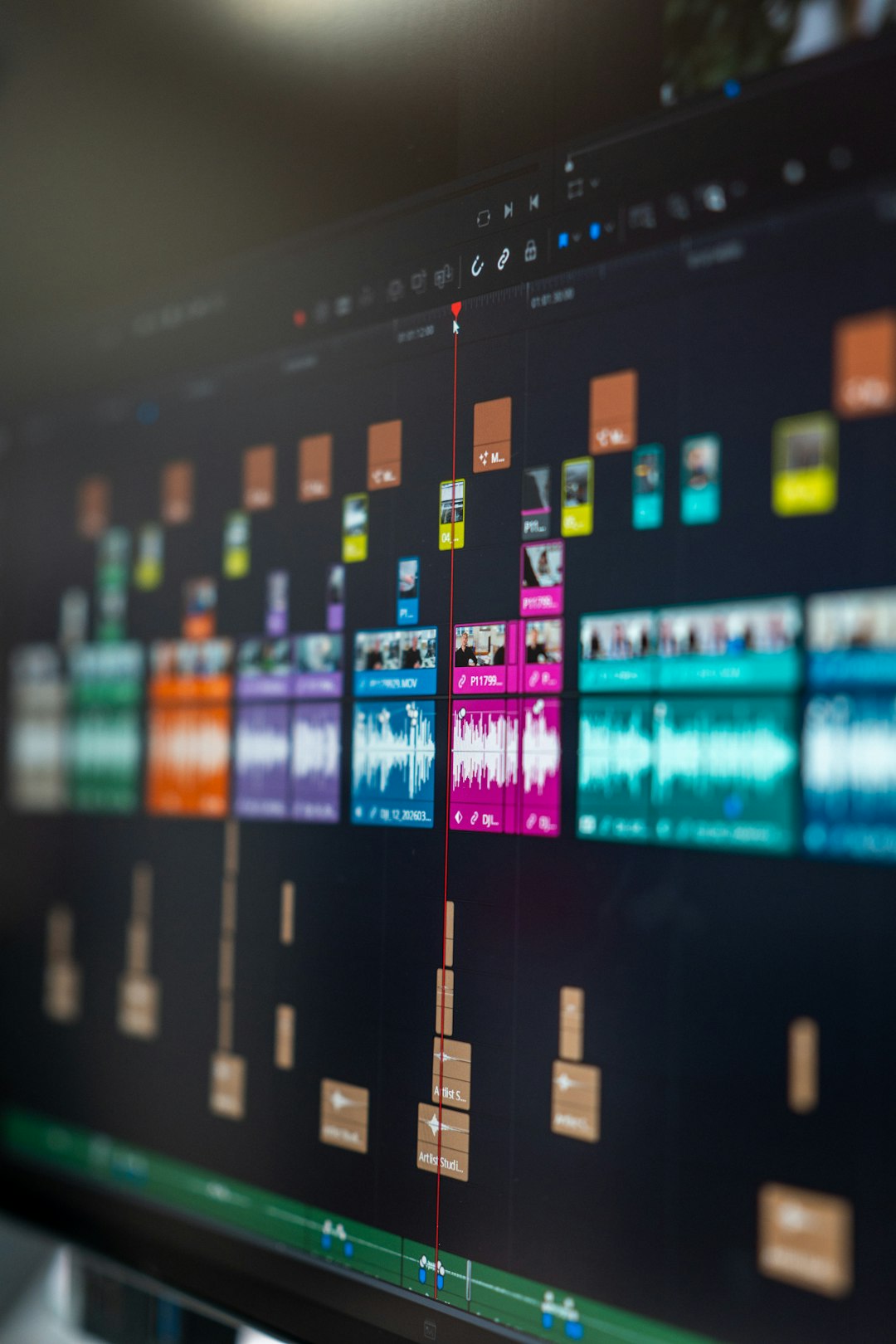
Descript treats the transcript as the editing surface. If an editor deletes a sentence from the transcript, the matching video section disappears too. This is the feature that makes Descript feel different from standard transcription apps.
For video creators, this is a big deal. A tutorial, podcast clip, webinar, or social video can be trimmed without scrubbing through a timeline for every pause. Descript also supports filler word removal, captions, screen recording, overdub style voice tools, and multitrack editing.
Descript works best when:
- The transcript needs to become captions or subtitles.
- The video will be edited after transcription.
- The team wants to remove filler words such as um and uh.
- The project includes podcasts, YouTube videos, courses, or webinars.
- Editors need text, audio, and video in one workspace.
Its weak spots show up with longer files and complex projects. Processing can feel slower than expected when a creator only wants plain text. The interface also asks for a bit of learning. Someone who only needs a quick transcript may feel boxed into too many editing features.
Otter.ai for Video Transcription
Otter.ai is built around conversations. It records, transcribes, summarizes, and organizes spoken content. It is widely used for Zoom meetings, Google Meet sessions, Microsoft Teams calls, interviews, lectures, and brainstorming sessions.
For video transcription, files can be uploaded and converted into text. Otter.ai can also identify speakers, create summaries, and highlight key points. Its search function is strong. Teams can find a phrase from a call without replaying the full recording.
Otter.ai works best when:
- The main goal is meeting notes or interview records.
- Several speakers appear in the same recording.
- The transcript needs to be searched later.
- Managers need summaries and action items.
- Live meeting transcription matters more than video editing.
Honestly, it feels a bit annoying when Otter.ai gets speaker labels wrong in a busy call. Fixing those labels can take longer than expected. It also has fewer video editing tools than Descript, so creators may still need a second app for captions, cuts, and final exports.
Accuracy: Which Tool Gets More Words Right?
Accuracy depends on audio quality more than the brand name. A clear microphone in a quiet room can produce a strong transcript in either tool. A noisy café recording with overlapping speakers will hurt both.
Descript often performs well with scripted videos, podcasts, narration, and studio style content. It also gives editors a good space to correct text while reviewing the media. That makes cleanup feel more natural.
Otter.ai performs well with meetings and interviews, especially when speakers take turns. Its summaries are useful when the transcript is long. Still, speaker separation can be uneven when people interrupt each other.
For the most accurate video transcription, teams should follow a few simple rules:
- Use an external microphone instead of a laptop mic.
- Record in a quiet room with soft surfaces.
- Ask speakers to avoid talking over each other.
- Upload the highest quality audio or video file available.
- Review proper nouns, product names, numbers, and legal terms by hand.
Export Options and Captions
Descript has the stronger caption workflow. It can export subtitles, burn captions into a video, and edit the final media in the same project. This makes it useful for social clips, training videos, and public content.
Otter.ai is better for text sharing. It provides clean transcripts, notes, summaries, and collaboration features. It is less suited to final video production. If a team needs subtitles for YouTube, Vimeo, LinkedIn, or course platforms, Descript usually cuts down the number of extra steps.
Pricing and Team Fit
Pricing changes, so teams should check current plans before choosing. In general, both tools offer limited free access and paid plans with more transcription time, exports, and collaboration features.
Descript’s value rises when the team edits video often. Paying for Descript only to create plain transcripts may be overkill. Otter.ai’s value rises when a company has many meetings and needs shared notes. It can reduce manual note taking and make old conversations easier to find.
A solo YouTuber, podcast editor, or course creator will likely get more from Descript. A recruiter, researcher, sales manager, or student will likely prefer Otter.ai.
Best Choice for Different Users
- For YouTube videos: Descript is the better fit because transcription and video editing stay together.
- For Zoom meetings: Otter.ai is usually better because it focuses on real time notes and summaries.
- For podcasts: Descript works well because it supports audio editing through text.
- For interviews: Otter.ai is strong, especially when search and speaker labels matter.
- For captions and subtitles: Descript is the safer pick.
- For quick searchable records: Otter.ai is the simpler choice.
Final Verdict
Descript and Otter.ai are both capable video transcription tools, but they solve different problems. Descript is best when the transcript is part of the editing process. Otter.ai is best when the transcript is a record of a conversation.
For accurate video transcription, the smartest choice depends on the end result. If the team needs captions, clips, and edited video, Descript should be first on the list. If the team needs meeting notes, summaries, and searchable discussions, Otter.ai makes more sense.
FAQ
Is Descript more accurate than Otter.ai?
Not always. Descript may feel more accurate for polished media and creator content. Otter.ai can be very accurate for clear meetings and interviews. Audio quality has the biggest effect.
Can both tools transcribe video files?
Yes. Both Descript and Otter.ai can transcribe uploaded video files. Descript is stronger when the video also needs editing.
Which tool is better for subtitles?
Descript is usually better for subtitles because it supports caption editing and video export workflows.
Which tool is better for meetings?
Otter.ai is usually better for meetings. It focuses on live transcription, summaries, speaker labels, and searchable notes.
Do transcripts still need human editing?
Yes. Automatic transcripts should be reviewed before publishing. Names, acronyms, numbers, and overlapping speech often need manual correction.
Can Otter.ai edit video like Descript?
No. Otter.ai is mainly a transcription and notes tool. Descript is the better option for editing video through text.