Use Kapwing if you want more creative control; use Clideo if you only need to reverse a clip quickly with almost no setup. Reversed video effects work best when the action is clear: a splash jumping back into a glass, papers flying into a hand, a skateboard trick undoing itself. Short clips matter too. Since 91% of businesses use video as a marketing tool, quick edits like reverse effects are no longer just for memes; they are useful for ads, tutorials, teasers, and social posts [source: Wyzowl].
TLDR: Clideo is faster for a simple reverse video because you upload, pick the reverse speed, and export. Kapwing is better if you want to add captions, timing cuts, music, overlays, or resize the same reversed clip for TikTok, YouTube Shorts, and Instagram Reels. For example, a creator editing a 12 second product shot may finish in about 2 minutes with Clideo, while Kapwing may take 5 to 8 minutes but gives more polish. If you only need the “pouring coffee back into the cup” effect, Clideo is the calmer choice.
Why reverse a video at all?
A reversed video turns ordinary motion into a visual hook. A bottle uncaps itself. Confetti flies back into a cannon. A broken cookie becomes whole again. The effect is simple, but it makes people stop scrolling for half a second longer, and sometimes that is all you get.
Reverse effects are especially useful for:
- Product videos, such as items reassembling or packaging closing perfectly.
- Food content, such as sauce jumping back onto a spoon.
- Fitness clips, where a jump or throw plays backward for comic effect.
- Music edits, especially for surreal intros or transitions.
- Social media loops, where forward and backward motion can repeat smoothly.

Clideo: best for a quick reverse effect
Clideo is the simpler of the two tools. Its reverse video tool is made for one job. Upload the clip, choose a reverse speed, decide whether to mute the audio, and export. That is basically it.
This is great when you are editing one clip and do not want a full timeline editor staring back at you. Honestly, it feels like a relief when a tool does not ask you to create a whole project just to flip ten seconds of footage backward.
Clideo usually works well for people who want to:
- Reverse a video from a phone, laptop, Google Drive, or Dropbox.
- Change playback speed, such as 0.5x, 1x, or 2x.
- Mute messy reversed audio.
- Export without learning editing software.
The interface is clean. There are not many distractions. That matters if you are making quick edits during a lunch break or fixing content before posting.
The catch is simple: Clideo is not a full creative editor. If you want to add animated text, subtitles, brand colors, layered graphics, or precise timing, you will hit the wall quickly. It can reverse the clip, but it will not help much with building a finished social post around it.
Kapwing: better for styled social content
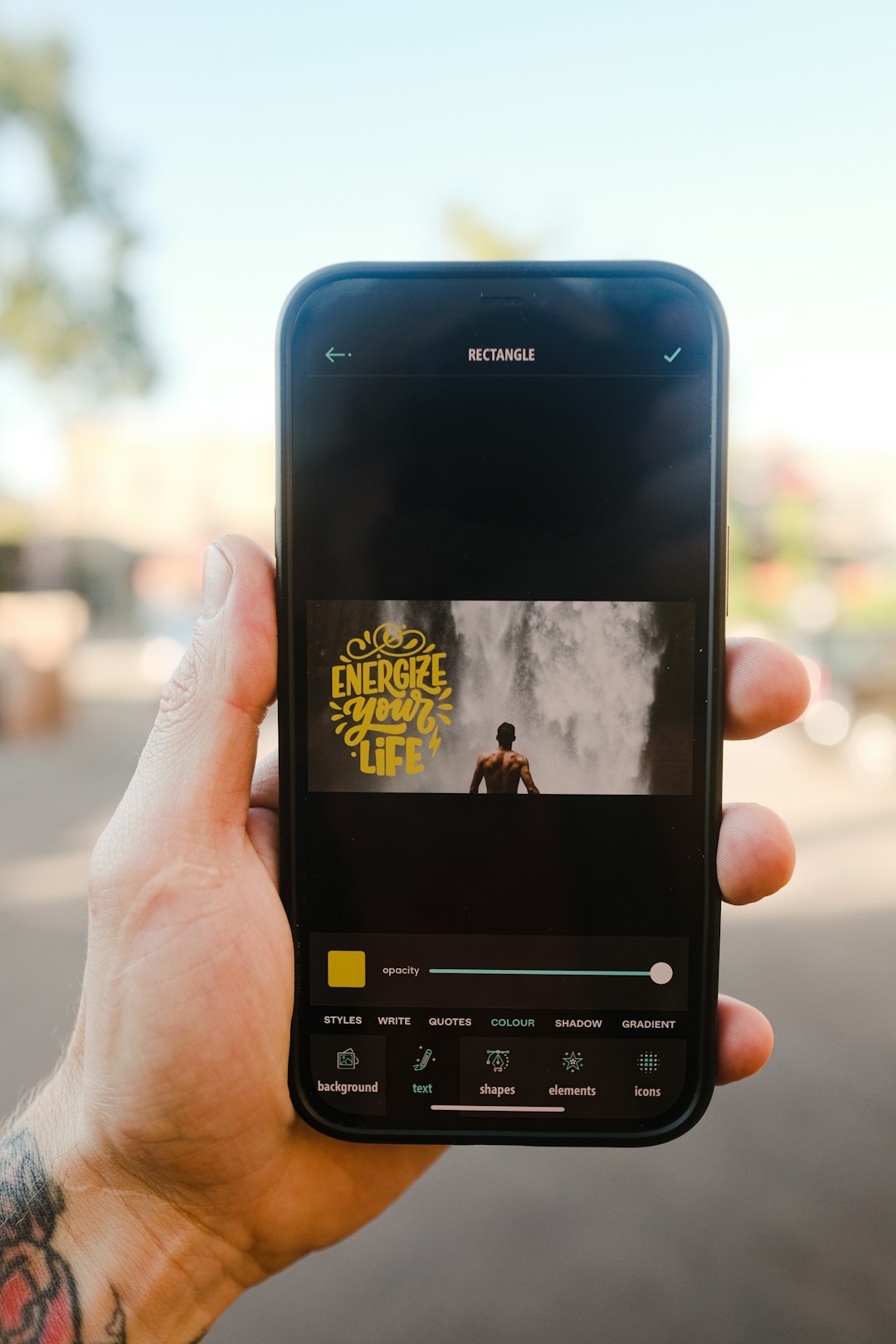
Kapwing is built more like an online video studio. You can reverse a clip, but you can also trim it, resize it, add text, create subtitles, drop in music, stack layers, and export in formats suited for different platforms.
That extra power helps when the reverse effect is only one part of the final video. Say you are making a TikTok where a sneaker jumps back into its box. In Kapwing, you can reverse the clip, crop it vertically, add captions, place a logo in the corner, and time a sound effect to the exact frame where the box closes.
Kapwing is a stronger fit for:
- Creators making short videos with captions and stickers.
- Marketers who need branded colors, logos, and several aspect ratios.
- Teachers creating visual examples or science demonstrations.
- Teams that want comments, drafts, and shared editing space.
Expect to spend more time in Kapwing. Not a huge amount, but enough to notice. A simple reverse that takes under 2 minutes in Clideo may take several extra clicks in Kapwing because you are working inside a broader editor. The upside is that the final video can look far more finished.
How to reverse a video with Clideo
- Open Clideo’s reverse video tool.
- Upload your video from your device or cloud storage.
- Select the reverse speed. Start with 1x for natural motion.
- Choose whether to mute the clip. Most reversed audio sounds strange.
- Preview the result.
- Export and download the finished video.
Clideo is best when the original clip is already trimmed. If you upload 90 seconds of footage but only need a 6 second moment, you may waste time waiting for unnecessary processing. Trim first if possible.
How to reverse a video with Kapwing
- Open Kapwing and start a new project.
- Upload your video clip.
- Select the clip on the timeline.
- Use the reverse option if available in the editing controls.
- Trim the clip to the strongest moment.
- Add captions, sound, text, overlays, or a logo.
- Resize for your platform, such as 9:16 for TikTok or Reels.
- Export the finished video.
Kapwing is the better pick if your reversed clip needs context. A reverse effect by itself can look random. A short caption like “When Monday fixes itself” or “Watch the spill undo itself” often makes the joke land faster.
Clideo vs. Kapwing: quick comparison
| Feature | Clideo | Kapwing |
|---|---|---|
| Best for | Fast reverse edits | Full social videos |
| Ease of use | Very simple | Simple, but with more tools |
| Creative control | Basic | Strong |
| Captions and text | Limited in the reverse tool | Much better |
| Speed options | Easy to access | Available with broader editing controls |
| Best user | Casual editor | Creator, marketer, team |
Which one should you choose?
Choose Clideo if you want the least friction. It is ideal for quick edits, one off clips, and simple visual tricks. If the goal is just to make a video play backward and download it, Clideo gets out of the way.
Choose Kapwing if you care about the whole post, not just the effect. It is the better tool for adding captions, designing a branded clip, trimming for pacing, and resizing for several channels. It may feel like overkill for a tiny edit, but it pays off when the reversed moment needs to look polished.
Image not found in postmetaTips for better reversed video effects
- Use clear motion. The effect works best when viewers instantly understand what is moving.
- Keep it short. Aim for 3 to 10 seconds. Longer reversed clips can feel slow.
- Mute bad audio. Reversed sound often becomes a harsh wobble.
- Try a loop. Play the same clip forward, then backward, for a seamless bounce effect.
- Stabilize your shot. Shaky footage looks even messier in reverse.
- Add text only when needed. A short caption can explain the joke without crowding the frame.
The best choice is not about which tool has the longest feature list. It is about the job. Clideo wins for speed and simplicity. Kapwing wins for finished social content. If your clip already looks good and only needs to run backward, use Clideo. If the reverse effect is part of a larger edit with captions, branding, and platform sizing, use Kapwing.