Use IFTTT when you need simple, low-code automation across apps, phones, and smart home gear. It is best for routine tasks that are clear and repeatable: “if this happens, then do that.” IFTTT says it connects with more than 900 services, including smart home brands, social platforms, productivity tools, and finance apps [source: IFTTT].
TLDR: IFTTT helps you connect apps and devices without writing code. For example, you can set a rule that turns on your hallway lights when your video doorbell detects motion after 10 p.m. If that saves 30 seconds across 20 alerts per month, that is 10 minutes saved from one small automation. It works well for simple workflows, but it is not a full business automation system.
What IFTTT Does
IFTTT stands for If This Then That. The idea is simple. A trigger happens in one service. Then IFTTT starts an action in another service.
These rules are called Applets. An Applet can be basic, such as saving Instagram photos to cloud storage. It can also be practical, such as sending a phone alert when your smart water sensor detects a leak.

IFTTT is useful because many apps do not talk to each other by default. Your smart light may not work cleanly with your calendar. Your weather app may not connect with your thermostat. IFTTT fills that gap with a simple rule builder.
Common Things You Can Automate
IFTTT fits best when the job is predictable. If you can explain the task in one sentence, there is a good chance it can become an Applet.
- Smart lighting: Turn lights on at sunset or off when you leave home.
- Security: Get alerts when a camera, lock, or sensor reports activity.
- Climate control: Adjust a thermostat when the weather changes.
- Productivity: Add starred emails to a task app.
- Social media: Share a post from one platform to another.
- Backups: Save photos, notes, or attachments to cloud storage.
The catch is that not every service supports every action you want. It drives me crazy when a device supports “motion detected” but not “person detected,” or when an app lets you receive data but not send it back. Check the exact triggers and actions before you build a workflow.
How to Build an Applet
The setup is usually quick. Still, do it with care. A bad automation can create noise, repeat alerts, or turn devices on at the wrong time.
- Choose a trigger. This is the event that starts the workflow. Example: “door opens.”
- Pick an action. This is what happens next. Example: “send a phone notification.”
- Connect the services. You may need to sign in and allow access.
- Add filters if available. For example, run the Applet only after 8 p.m.
- Test it. Do not assume it works. Trigger it yourself and confirm the result.

A strong Applet should be specific. “Turn on all lights when motion is detected” may be too broad. “Turn on the porch light for 5 minutes when motion is detected after sunset” is better. It reduces false triggers and keeps the home from acting weird.
Good Smart Home Use Cases
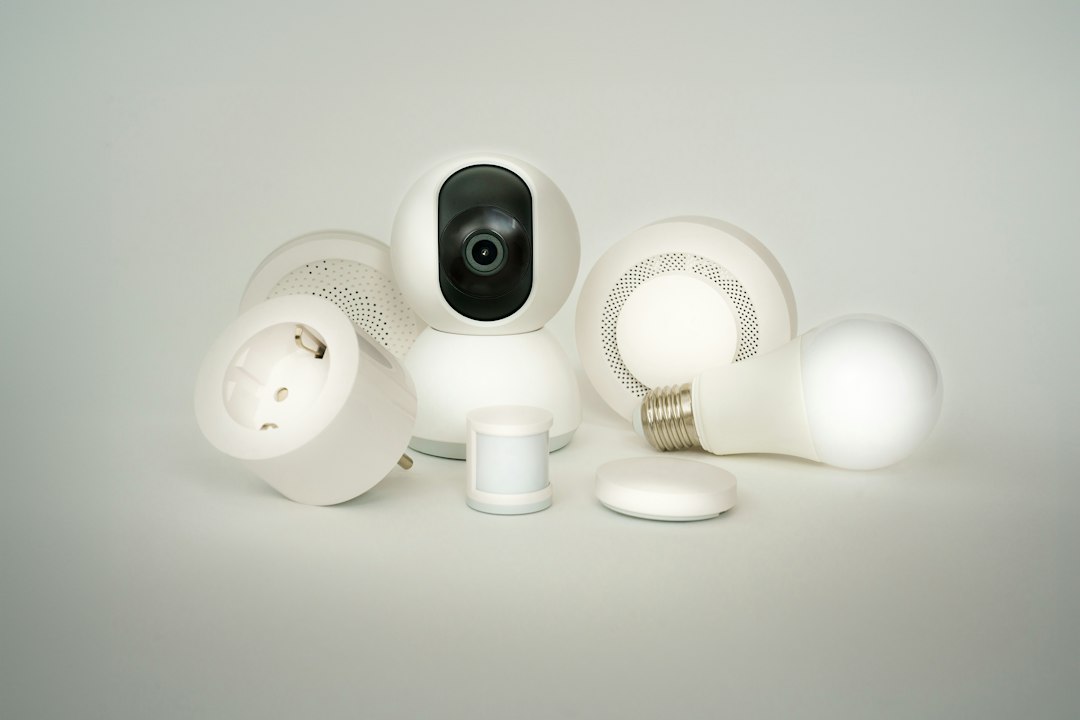
Smart home automation is where IFTTT often feels most useful. It can connect devices that were not designed to work together. That is valuable if your home has a mix of brands.
- Leak response: If a water sensor detects moisture, send a text and turn a smart plug off.
- Arrival routine: If your phone enters a geofence, turn on entry lights.
- Night safety: If motion is detected near the garage, turn on outdoor lights.
- Energy savings: If you leave home, set the thermostat to eco mode.
Be careful with locks, alarms, and garage doors. Use extra checks. You do not want a weak trigger opening a door or disabling a security device.
Business and Productivity Workflows
IFTTT can also help with office tasks. It is not a replacement for heavier tools like Zapier, Make, or native CRM automation. Still, it works well for personal productivity and small team routines.
For example, a freelancer can save emailed invoices to a cloud folder, log new calendar events in a spreadsheet, and receive a mobile alert when a key client posts on social media. None of that is glamorous. It just removes tiny chores that add up.
If a task takes two minutes and happens five times a week, that is about 40 minutes saved per month. That is not life changing. But it is enough to matter, especially when several workflows run quietly in the background.
Limits You Should Know
IFTTT is easy, but it is not perfect. Some Applets run with delays. Some services limit what IFTTT can access. Free plans may also limit how many Applets you can run or how advanced they can be.
Honestly, it feels like the worst part is troubleshooting a workflow that “should” work but does not fire for 10 or 15 minutes. For lights, that delay feels broken. For a daily report, it may be fine.
Use IFTTT for low-risk tasks first. Avoid using it as the only layer for safety, payments, access control, or medical alerts.
Best Practices
- Name Applets clearly. Use names like “Porch light on after motion at night.”
- Review permissions often. Remove services you no longer use.
- Start small. Build one workflow, test it, then add more.
- Avoid loops. Do not create rules where one Applet triggers another endlessly.
- Keep manual control. Make sure you can still use the device or app normally.
IFTTT is worth using when the workflow is simple, repeatable, and safe to automate. It shines in smart homes and personal productivity because it removes small tasks without needing code. Treat it as a practical helper, not a mission-critical control system. Build carefully, test often, and keep the most sensitive tasks under direct human control.