
A network security key is the password that lets a device join a protected Wi-Fi network. In most homes and small offices, it is simply the Wi-Fi password printed on the router label or saved on a phone, laptop, or computer. Windows 11 can show saved Wi-Fi passwords in Settings, which is useful when the sticker is missing or the password was changed months ago [source: Microsoft].
TLDR: A network security key is your Wi-Fi password, not usually your router admin password. For example, if a 12-person office buys a new printer, someone will need the key to connect it to the same wireless network. You can find it on Windows, macOS, Android, or the router label if you have permission. If the key has been shared too widely, change it and reconnect trusted devices only.

What a Network Security Key Means
A network security key is the secret code used to protect a wireless network. It stops nearby strangers from joining your Wi-Fi and using your internet connection. It also helps keep local devices, such as laptops, phones, smart TVs, and printers, away from unwanted access.
You may see the same thing called a Wi-Fi password, wireless password, WPA key, WPA2 key, or passphrase. These names can feel needlessly messy. The catch is that router makers, phones, and operating systems often use different labels for the same basic thing.
Do not confuse it with the router admin password. The network security key connects devices to Wi-Fi. The admin password opens the router settings page. They may be printed on the same sticker, but they should not be treated as the same credential.
How to Find It on Windows
If your Windows PC is already connected to the Wi-Fi network, you can usually view the saved key.
- Open Settings.
- Go to Network & internet.
- Select Advanced network settings.
- Open More network adapter options.
- Right-click your Wi-Fi adapter and choose Status.
- Select Wireless Properties.
- Open the Security tab.
- Check Show characters.
The value shown in the Network security key field is your Wi-Fi password. You may need administrator rights. That extra prompt can be annoying, but it is there for a reason. A saved Wi-Fi password is still sensitive information.
How to Find It on macOS
On a Mac, saved Wi-Fi passwords are stored in Apple’s password and keychain tools. The exact steps vary a little by macOS version.
Using System Settings:
- Open System Settings.
- Select Wi-Fi.
- Find the connected or known network.
- Click the information button or options menu.
- Choose Copy Password or view the password if your version allows it.
Using Keychain Access:
- Open Keychain Access.
- Search for the Wi-Fi network name.
- Open the matching item.
- Check Show password.
- Enter your Mac password or use Touch ID if asked.
Honestly, it feels like this should take 10 seconds, not a small hunt through system tools. Still, Keychain Access is reliable when the network was saved correctly.
How to Find It on Android
Most newer Android phones can show or share a saved Wi-Fi password with a QR code. The wording depends on the phone maker.
- Open Settings.
- Tap Network & internet or Connections.
- Tap Wi-Fi.
- Select the current network.
- Tap Share, QR code, or a similar option.
- Verify with your fingerprint, PIN, or face unlock.
The phone may show the password as text under the QR code. If not, another device can scan the code to join the network. Some older Android versions may not reveal the password unless the phone is rooted, which is not worth the risk for most users.
How to Find It on Your Router
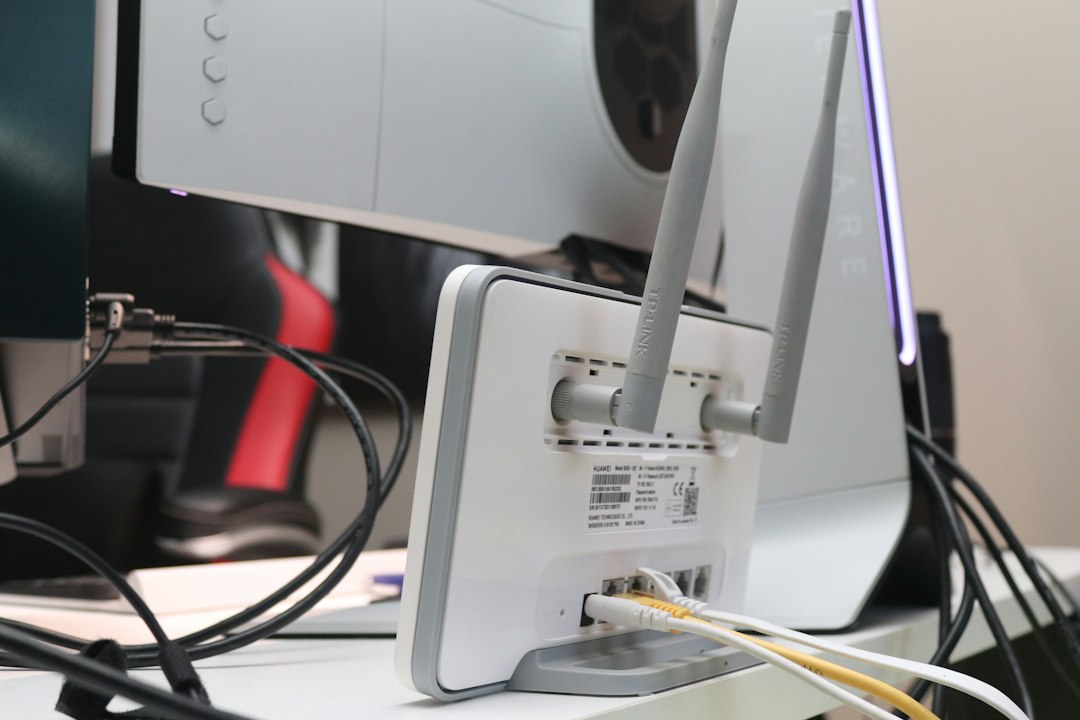
If no device can show the saved key, check the router itself. Many routers have a label on the back, bottom, or side. Look for terms like:
- Wi-Fi Password
- Wireless Key
- WPA Key
- Network Key
- SSID Password
The SSID is the Wi-Fi network name. The key next to it is usually the password. If the password was changed after setup, the printed label will not work.
You can also sign in to the router settings page. Open a browser and enter the router address, often 192.168.0.1 or 192.168.1.1. Sign in with the router admin username and password. Then look for Wireless, Wi-Fi, or Security settings. The password may be hidden until you click a reveal button.
When You Should Change the Key
Change the network security key if guests, former staff, tenants, or unknown people may have it. Also change it after a router reset, a suspected breach, or a move into a new home.
Use a strong key. A good Wi-Fi password should be at least 12 characters. Longer is better. Mix words, numbers, and symbols. Avoid names, birthdays, street names, and anything printed near the router.
After changing the key, every device must reconnect. Expect to waste a little time on smart TVs, printers, thermostats, and cameras. These devices often have the worst password entry screens.
Final Safety Tips
- Share the key only with people you trust.
- Use a guest network for visitors when your router supports it.
- Do not send the key in public chats or unsecured notes.
- Keep the router firmware updated to reduce known security flaws.
- Use WPA2 or WPA3 security when available.
A network security key is small, but it protects a lot. Treat it like a house key. If too many people have it, replace it.